Title: 記事の投稿
Author: Dion Hulse
Published: 2019年11月17日
Last modified: 2021年9月29日
---
## カテゴリー
* [はじめに](https://ja.wordpress.org/support/category/getting-started/)
* [インストール](https://ja.wordpress.org/support/category/installation/)
* [基本的な使い方](https://ja.wordpress.org/support/category/basic-usage/)
* [基本的な管理](https://ja.wordpress.org/support/category/basic-administration/)
* [カスタマイズ](https://ja.wordpress.org/support/category/customizing/)
* [メンテナンス](https://ja.wordpress.org/support/category/maintenance/)
* [セキュリティ](https://ja.wordpress.org/support/category/security/)
* [高度なトピック](https://ja.wordpress.org/support/category/advanced-topics/)
* [トラブルシューティング](https://ja.wordpress.org/support/category/troubleshooting/)
## 翻訳・改善にご協力ください
ドキュメンテーションを現在[英語版](https://wordpress.org/support/)から翻訳中です。
どなたでも[ご協力いただけます](https://ja.wordpress.org/team/2019/08/06/359/)。
誤字や間違った情報にお気づきの方は、各記事の下にあるフィードバックセクションから
お知らせください。
# 記事の投稿
注意: このページでは WordPress 5.0 から導入された「ブロックエディター」(Gutenberg)
を使用して説明します。それ以前のバージョンのクラシックエディターの使用方法について
は[こちらのページ](https://ja.wordpress.org/support/article/writing-posts/?output_format=md)
を参照してください。
投稿とは、ホームページやブログページに新しいものから古いものの順番で表示されるエントリー
のことです。通常、それぞれの投稿の下にはコメント欄があり、サイトの RSS フィードに
含まれます。
投稿するには
1. WordPress の管理画面 (ダッシュボード) にログインします。
2. サイドバーメニューの「投稿」をクリックしてください。
3. その下の「新規追加」をクリックしてください。
4. 空いているところを埋めていきます。上のフィールドに投稿のタイトルを入力し、その下
のメインの投稿編集ボックスにコンテンツ本体を記入します。
5. 必要であれば、カテゴリーやタグを選択し、各セクションの設定を選択します。それぞれ
のセクションについては、以下で説明します。
6. 書き終えたら、**公開**ボタンをクリックします。
## 画面オプション
最初にログインした際に表示される編集フィールドよりも多くのフィールドを利用可能です。
[表示オプション](https://ja.wordpress.org/support/article/administration-screens/#%e8%a1%a8%e7%a4%ba%e3%82%aa%e3%83%97%e3%82%b7%e3%83%a7%e3%83%b3)
領域では編集画面でどの投稿フィールドを表示するか、非表示にするかを選択して、画面
を整理し必要に応じてカスタマイズできます。
表示オプションタブは画面の最上部にあり、クリックすると使用可能な編集ボックスのリスト
が表示されます。表示する投稿フィールドのボックスをオンにするか、隠すモジュールの
ボックスをオフにします。表示オプションタブを再度クリックするとタブが閉じます。
編集画面のカスタマイズが完了するとオプションは保存されるため、次回ログインした際
に再度表示、非表示する必要はありません。
## 各フィールドの説明
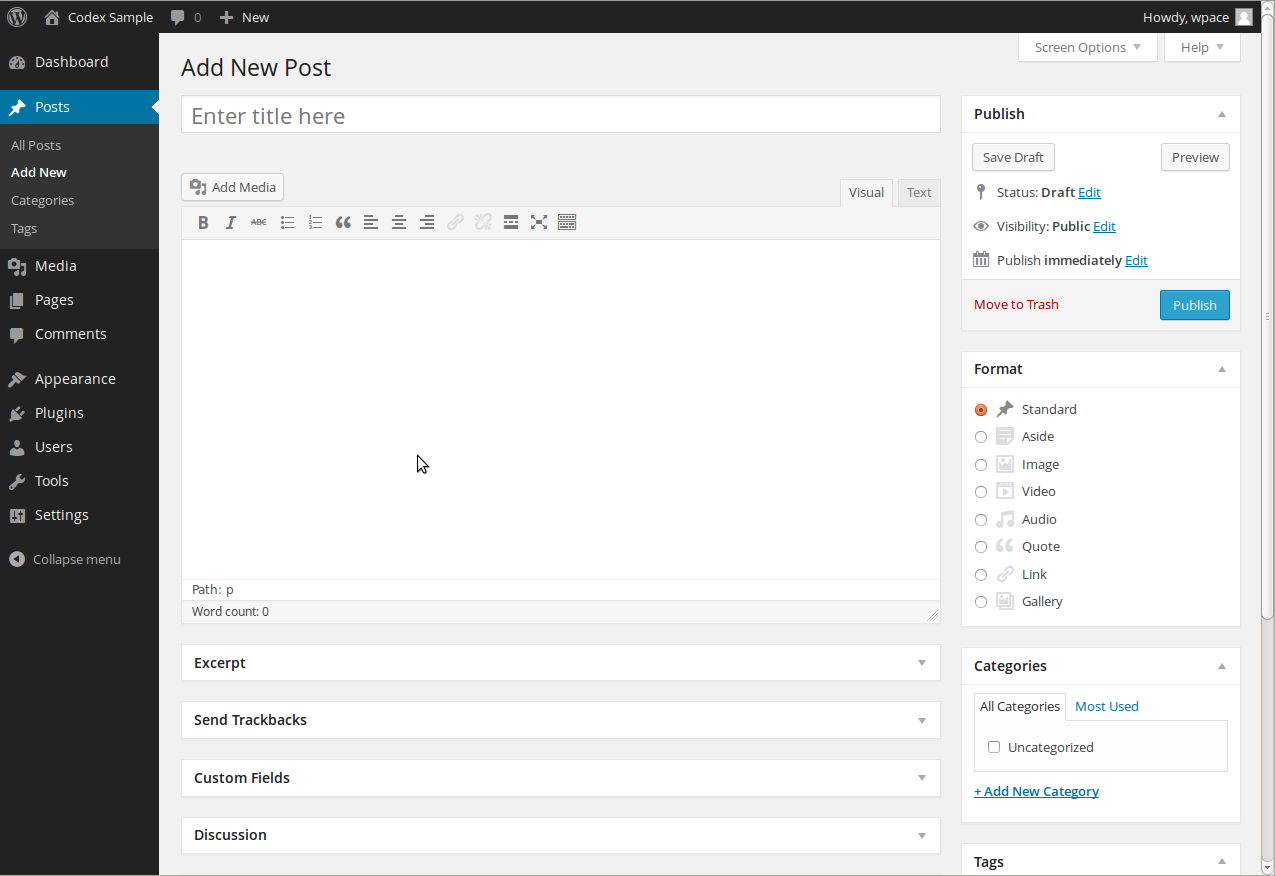
WordPress 新規投稿の編集画面
**Title/Headline Box**
This box should contain the title of your post. You can use any phrase, words, or
characters. (Avoid using the same title on more than one page.) You can use commas,
apostrophes, quotes, hyphens/dashes, and other typical symbols in the post like “
My Site – Here’s Lookin’ at You, Kid.” WordPress will then clean it up to generate
a user-friendly and URL-valid name of the post (also called the “post slug”) to
create the permalink for the post.
**Permalink**
Permalink stands for “permanent link.” That means a post URL that does not expose
the post ID which could be subject to a change (e.g. when moving to different blogging
system), but it rather contains a user-friendly post name derived from the post
title which could also change, although not recommended, but in a more controllable
way. This post name (also referred to as “post slug” or just “slug”) can be edited,
depending on your [Permalinks](http://wp-helphub.com/getting-started/using-permalinks/)
settings, using the “Edit” button. (To change your settings, go to Administration
Panels > Settings > Permalinks). The permalink is automatically generated based
on the title you set to the post and is shown below the title field. Punctuation
such as commas, quotes, apostrophes, and invalid URL characters are removed and
spaces are substituted with dashes to separate each word. If your title is “My Site–
Here’s Lookin’ at You, Kid”, it will be cleaned up to create the slug “my-site-heres-
lookin-at-you-kid”. You can manually change this, maybe shortening it to “my-site-
lookin-at-you-kid”.
**Body Copy Box**
The blank box where you enter your writing, links, images, links to images, and
any information you want to display on your site. You can use either the visual (
WYSIWYG) editor or the text view to compose your posts. For more on the text view,
see the section below, [Visual Versus Text Editor](https://ja.wordpress.org/support/article/writing-posts/?output_format=md#visual-versus-text-editor).
**Publish Box**
Contains buttons that control the state of your post. The main states are Draft
and Published. _Draft_ means the post has not been published and remains in draft
status for the post creator. A _Published_ status means the post has been published
and is live on your site.
_Preview Button
Allows you to view the post before publishing.
_Save Draft_
Allows you to save your post as a draft rather than immediately publishing
it. To return to your drafts later, visit Posts – Edit in the menu bar, then select
your post from the list.
_Status_
If you select a specific publish status (click _Edit_ next to _Status:
Draft_) and click the update post or “Publish” button, that status is applied to
the post. For example, to save a post in the _Pending Review_ status, select Pending
Review from the Publish Status drop-down box, and click Save As Pending. (You will
see all posts organized by status by going to Administration Panels > Posts > Edit).
_Visibility_
This determines how your post appears to the world. (click _Edit_
next to _Visibility_) Public posts will be visible by all website visitors once
published. Password Protected posts are published to all, but visitors must know
the password to view the post content. Private posts are visible only to you (and
to other editors or admins within your site).
_Revisions_
Click _Browse_ to see all of the changes you’ve made to your post.
_Scheduling_
To schedule a post for publication on a future time or date, click
_Edit_ next to the words “Publish immediately.” You can also change the publish
date to a date in the past to back-date posts. Change the settings to the desired
time and date. You must also click the _Publish_ button when you have completed
the post to publish at the desired time and date.
**Format Box
Allows you to choose a format for a post. Styling and appearance are handled by
the individual themes.
**Categories Box**
The general topic of the post. It is typical for a blog to have 7-10 categories
for content. Readers can browse specific categories to see all posts in the category.
You can manage your categories by going to Administration Panel > Posts > Categories.
**Tags Box**
These are micro-categories for the post, similar to including index entries for
a page. Posts with similar tags are linked together when a user clicks one of the
tags. Tags have to be enabled with the right code in your theme for them to appear
in your post. Add new tags to the post by typing the tag into the box and clicking“
Add.” You can also click on the “Choose from the most-used tags” link to see all
of the tags used by the site.
**Excerpt**
A summary or brief teaser of your post that may appear on the front page of your
site as well as on the category, archives, and search non-single post pages. Note:
the Excerpt does not usually appear by default. It only appears in your post if
you have modified the template file listing the post to use the_excerpt() instead
of the_content() to display the Excerpt instead of the full content of a post. If
so, WordPress will automatically use as the Excerpt the first 55 words of your post
content or the content before the quicktag. If you use the “Excerpt” field
when editing the post, this will be used no matter what. For more information, see
Excerpt.
**Send Trackbacks**
A way to notify legacy blog systems that you’ve linked to them. If you link other
WordPress blogs, they’ll be notified automatically using pingbacks. No other action
is necessary. For those blogs that don’t recognize pingbacks, you can send a trackback
to the blog by entering the website address(es) in this box, separating each one
by a space. See Trackbacks and Pingbacks for more information.
**Custom Fields**
Custom Fields offer a way to add information to your site. In conjunction with extra
code in your template files or plugins, Custom Fields can modify the way a post
is displayed. These are primarily used by plugins, but you can manually edit that
information in this section.
**Discussion**
Options to enable interactivity and notification of your posts. This section hosts
two check boxes: _Allow Comments on this post _and _Allow trackbacks and pingbacks
on this post_. If _Allowing Comments_ is unchecked, no one can post comments to
this particular post. If _Allowing Pings_ is unchecked, no one can post pingbacks
or trackbacks to this particular post.
**Post Author**
A list of all blog authors you can select from to attribute as the post author.
This section only shows if you have multiple users with authoring rights in your
blog. To view your list of users, see Administration Panel > Users. For more information,
see Users and Authors.

WordPress Admin Writing Post Advanced Panel – Bottom of Page
**Note:** You can set basic options for writing, such as the size of the post box,
how smiley tags are converted, and other details by going to Administration Panel
> Settings > Writing.
## 投稿のベストプラクティス
You can say or show the world anything you like on your WordPress site. Here are
some tips you need to know to help you write your posts in WordPress.
**Practice Accessibility**
To be compliant with web standards for accessibility, be sure to include ALT and
TITLE descriptions on links and images to help your users, such as WordPress.ORG.
**Use Paragraphs**
No one likes to read writing that never pauses for a line break. To break your writing
up into paragraphs, use double spaces between your paragraphs. WordPress will automatically
detect these and insert HTML paragraph tags into your writing.
**Use Headings**
If you are writing long posts, break up the sections by using headings, small titles
to highlight a change of subject. In HTML, headings are set by the use of h1, h2,
h3, h4, and so on.
**Use HTML**
You don’t have to use HTML when writing your posts. WordPress will automatically
add it to your site, but if you do want control over different elements like boxes,
headings, and other additional containers or elements, use HTML.
**Spell Check and Proofread**
There are spell check Plugins available, but even those can’t check for everything.
Some serious writers will write their posts in a text editor with spell check, check
all the spelling and proof it thoroughly before copying and pasting into WordPress.
## ビジュアルエディターとテキストエディター
When writing your post, you have the option of using the Visual or Text mode of
the editor. The visual mode lets you see your post as is, while the Text mode shows
you the code and replaces the WYSIWYG editor buttons with quicktags. These quicktags
are explained as follows.
* **b** – `` HTML tag for strong emphasis of text (i.e. **b**old).
* _i_ – `` HTML tag for emphasis of text (i.e. _i_talicize).
* b-quote – `
` HTML tag to distinguish quoted or cited
text.
* del – `
` HTML tag will insert a numbered list, or wrap the selected text
in same. Each item in an ordered list is typically numbered.
* li – `` HTML tag will insert or make the selected text a list item.
Used in conjunction with the ul or ol tag.
* code – `