

説明
PaintClarity turns your WordPress site into the back office for your painting business. (PaintClarity was formerly known as PaintOps. Same plugin, same team, same data.) Build professional quotes, send them to customers who can view, e-sign, and pay a deposit online, schedule crews on a calendar, track every job from lead to invoice, and, on Pro, see your real profit per job, per crew, and per worker.
It was built by a painter, for painters. The quote builder understands painting scope: interior/exterior components, standard inclusions and exclusions, and the disclaimer language that keeps you out of disputes. Your data lives in your own WordPress database, not locked inside someone else’s SaaS.
Quote to invoice, start to finish
- Quotes, estimates & bids: a scope-aware builder with reusable inclusions/exclusions, itemized or lump-sum pricing, printable output, and email delivery.
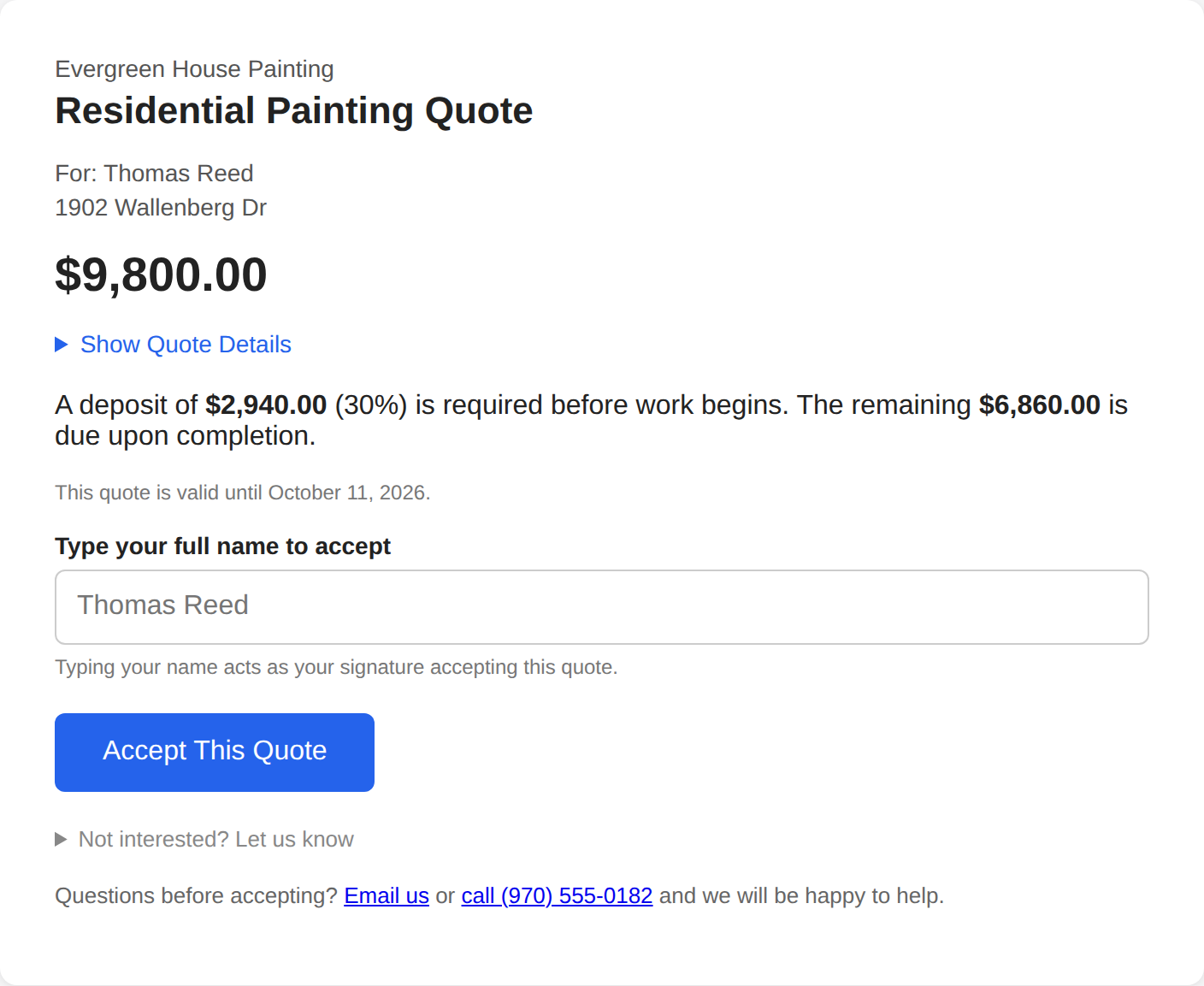
- A professional customer page: your customer opens a clean, branded page (your logo, your terms & conditions) and accepts by typing their name, an e-signature-grade record with timestamp. They can also decline with a reason, or ask a question, and you’re notified either way.
- Acceptance converts the quote to a job automatically, whether they paid a deposit online or you shook hands, and a “Mark as Won” button covers the phone call.
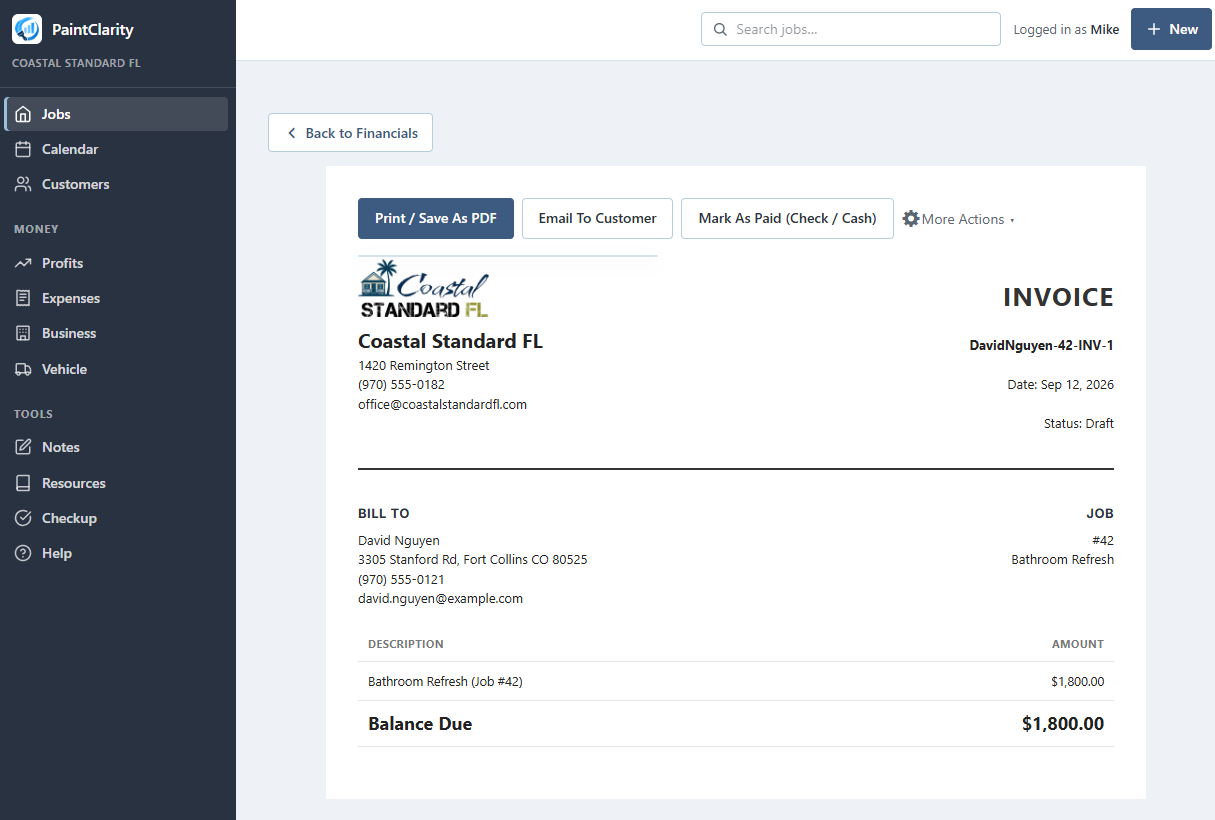
- Invoices: numbered invoices for the balance (full or partial), emailed or shared by link, payable online (Pro + Stripe) or marked paid for check/cash, with the payment logged so balances always agree.
- Receivables at a glance: unpaid invoices surface on your dashboard with amounts and age.
Running the work
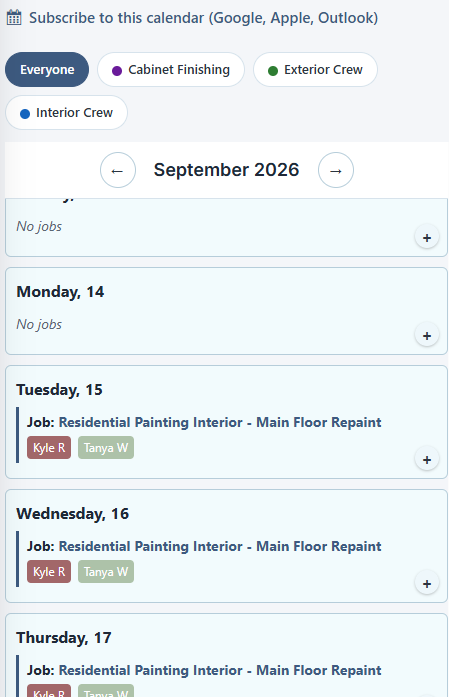
- Scheduling calendar with crew filtering, worker badges, time-off, and a subscribe link for Google/Apple/Outlook. Add your own recurring holiday labels.
- Crews: group your painters into named, colored crews; staff a job with one tap and filter the calendar and reports by crew.
- Job board / pipeline: Quote Active Completed, plus a lost-leads drawer with the customer’s decline reason so you can revive the ones worth re-working.
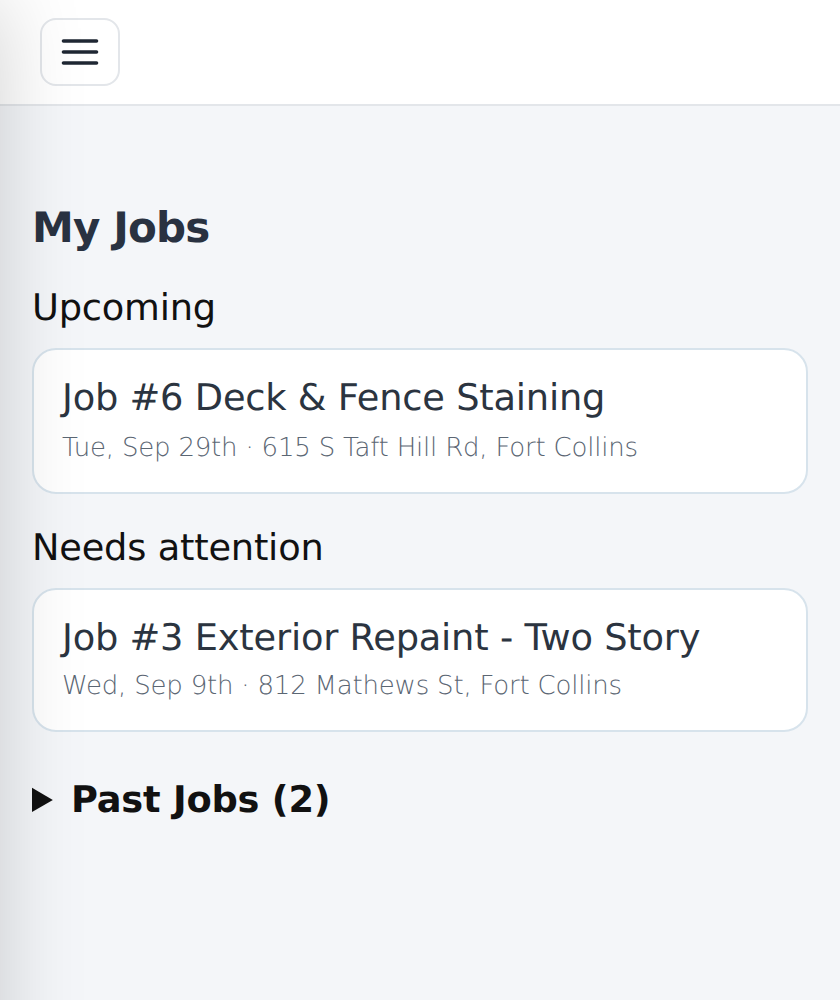
- A real app for your painters: install-to-home-screen (PWA), a “My Jobs” home, one-tap directions (Google/Apple/Waze), per-job check-in/out that works offline and syncs, photo/receipt/note logging, a “My Hours” view of their own time and pay, and a “Mark Job Complete” button that notifies the office. Workers see only what their permissions allow, never your numbers.
- Customers: a directory with contact details, lifetime value, job history, and multiple service addresses per customer, built for landlords, realtors, property managers, and GCs whose one account means a dozen properties.
- Before/After photos with camera alignment overlay and a compare slider.
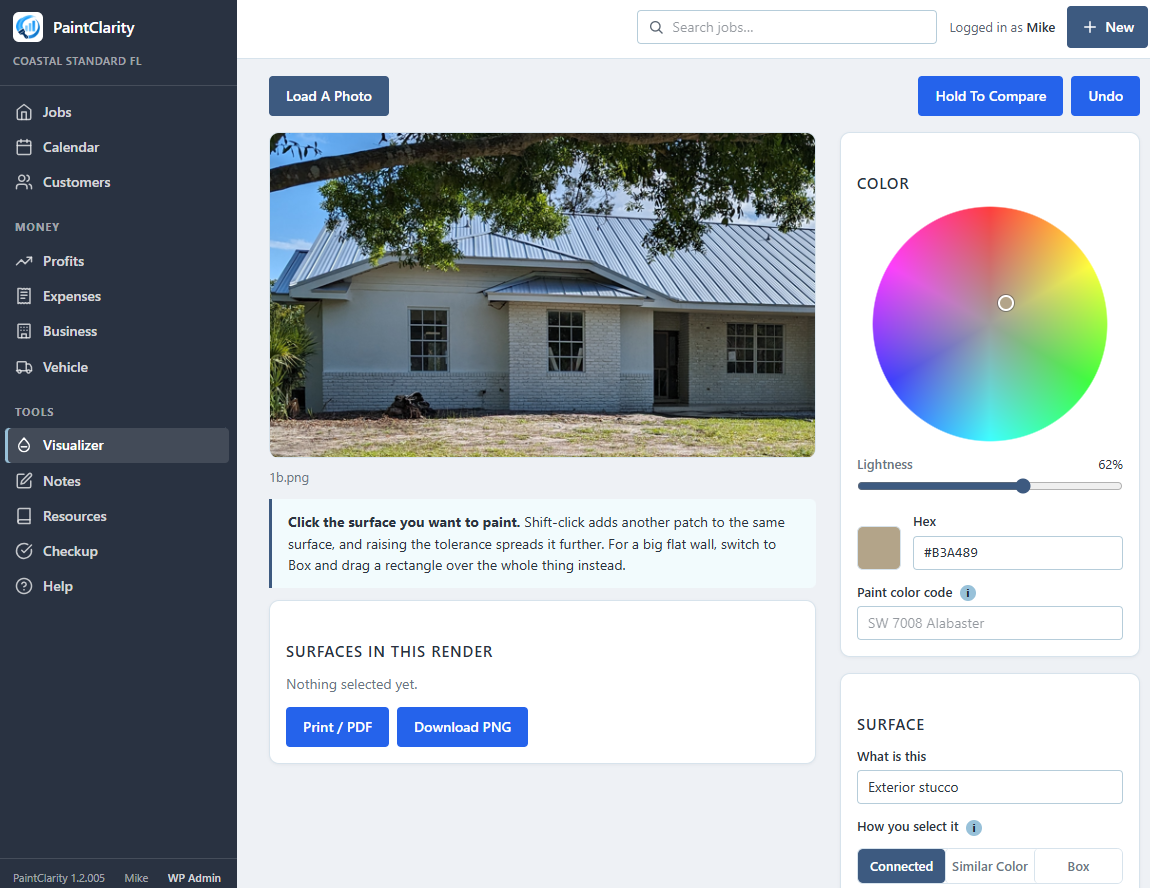
- Color Visualizer: load a photo of the house or the room, select the surface, and turn a color wheel until it is the color you are proposing. The wall changes color and keeps its own shading, grain and texture. Select by fill, by matching color, or by dragging a box over a big flat wall. Handles stucco, siding, brick, concrete block and interior drywall, takes the Sherwin-Williams or Benjamin Moore number alongside it, and prints or saves the render for the customer. Runs entirely in your browser: no photo is uploaded anywhere.
- Trade calculators, paint-color tracking, and resource links.
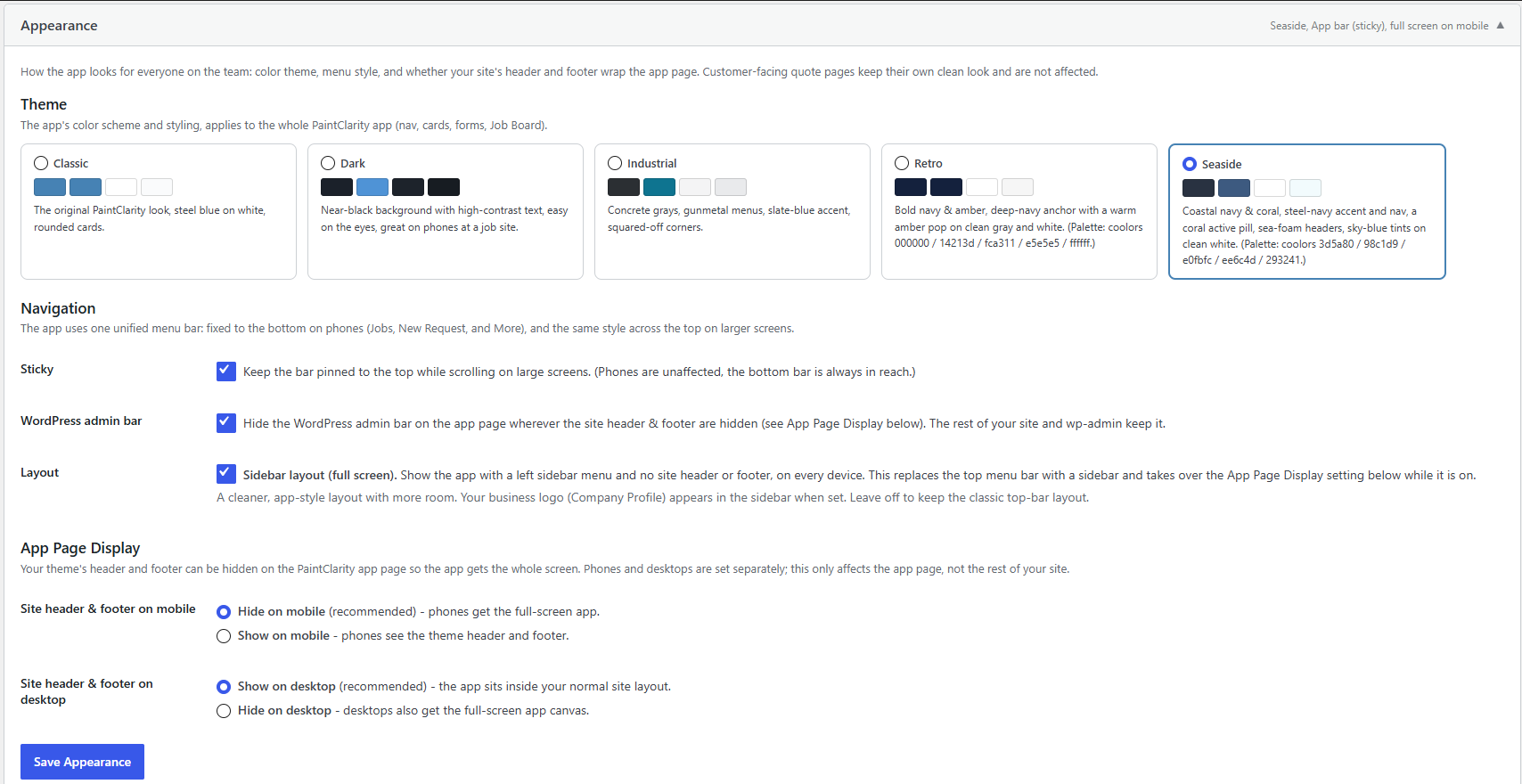
- A choice of visual themes (light, dark, industrial, and more) with a modern app-style navigation bar on desktop and phone.
What Pro adds
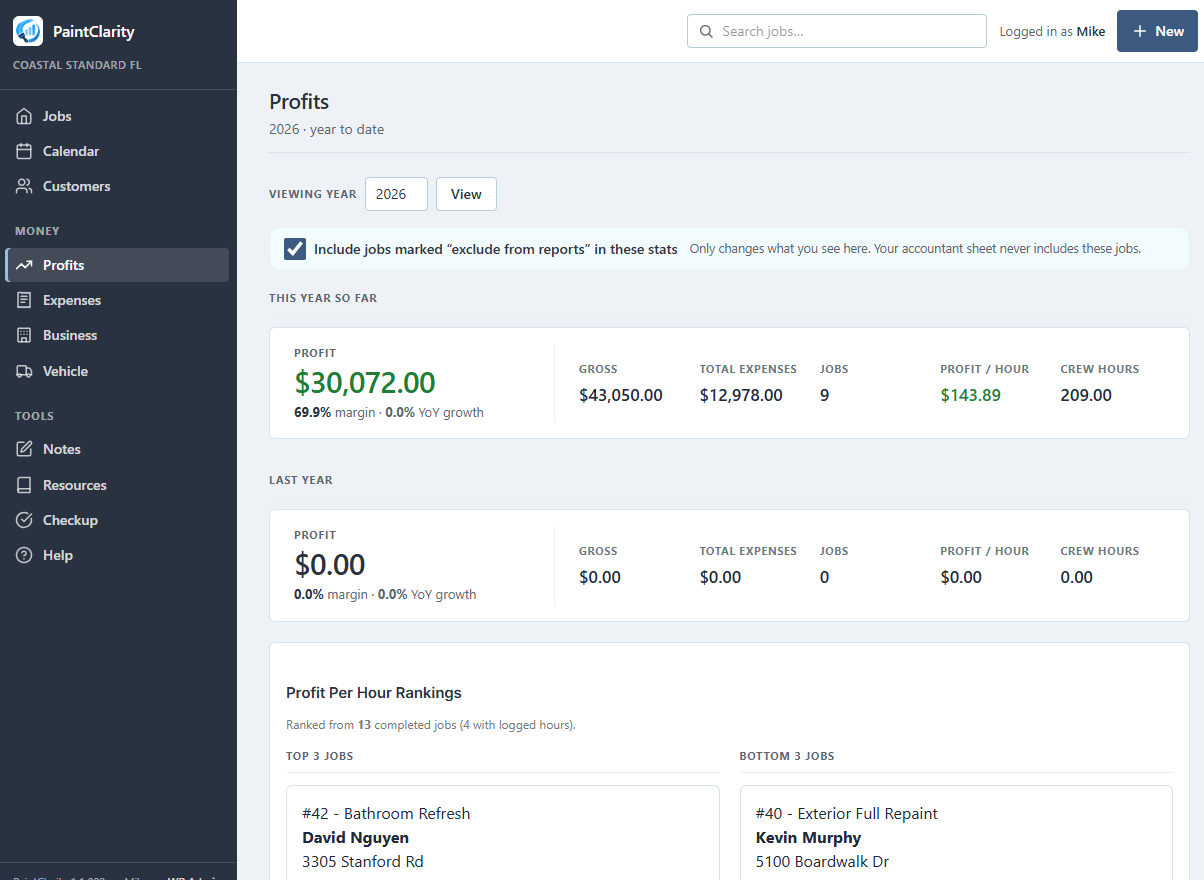
- Job financials & profitability: costs, materials, labor hours; gross, expenses, profit, and margin per job; a Profits dashboard with profit-by-classification, profit-per-hour rankings, and profit by crew and by worker (allocated by logged hours).
- Expenses & receipts against any job, plus business-level and vehicle expense tracking for tax time.
- Online payments: deposits on quote acceptance and invoice balances through Stripe Checkout, recorded automatically.
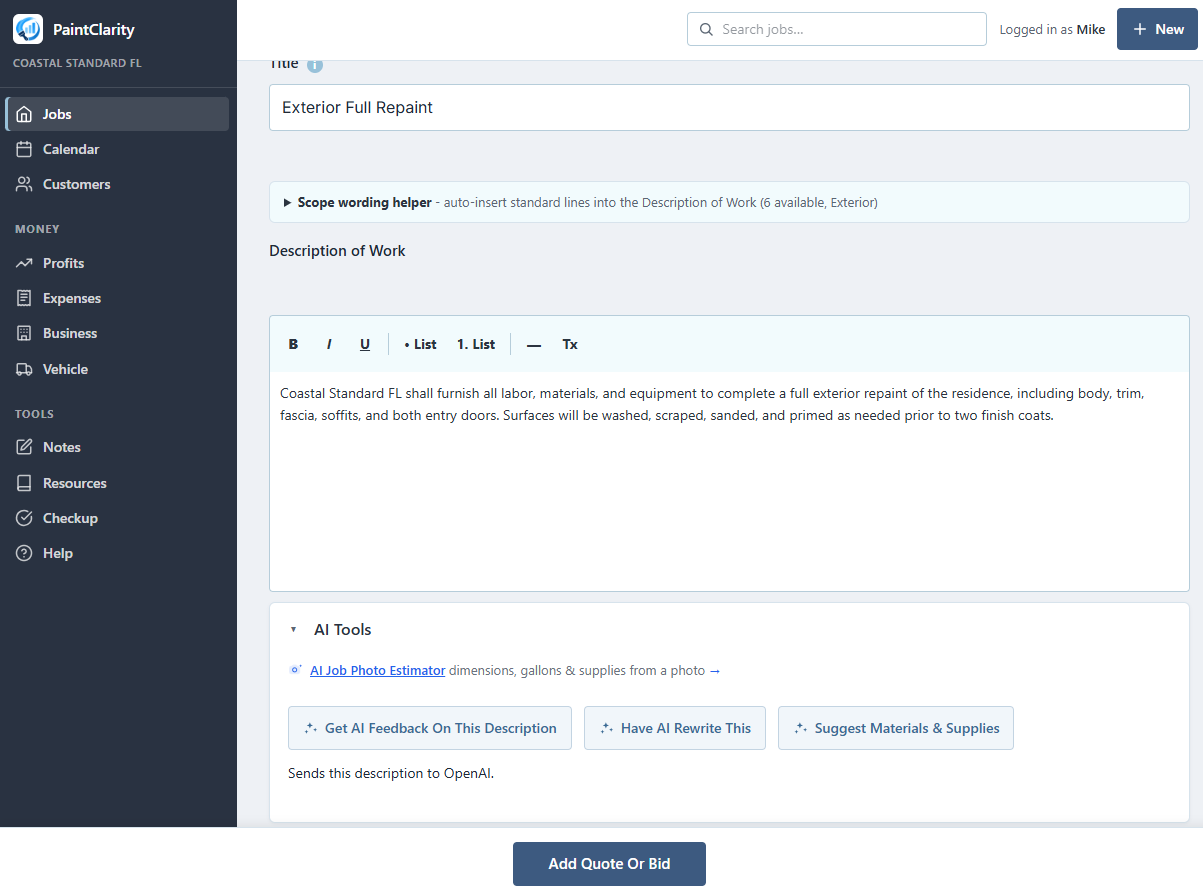
- AI tools (bring your own OpenAI key): estimate dimensions, gallons, and a Description of Work from a photo; scan receipts to auto-fill expenses; get feedback on or a rewrite of your quote wording.
Pro is a paid upgrade handled through Freemius. The free plugin is fully functional on its own; Pro is optional.
Bundled artwork
The four ready-made logos offered under Business > Logo URL (assets/img/logos/) are AI-generated original artwork created for this plugin. They carry no third-party rights and are distributed under the same GPLv2-or-later license as the rest of the plugin. They are optional, off by default, and carry no PaintClarity branding or link.
External services
This plugin can connect to the following third-party services. Some are optional and only run when you enable and configure the corresponding feature.
OpenAI (Pro AI features, optional). When you use an AI feature (Photo Estimate, Receipt Scan, Description-of-Work Feedback or Rewrite), the plugin sends the relevant input, the photo you choose to upload and/or the quote text you are working on, to the OpenAI API using your own OpenAI API key, and receives the generated result. No data is sent unless you click one of these buttons. PaintClarity does not store the photo. Requests go to https://api.openai.com. See OpenAI’s Terms (https://openai.com/policies/terms-of-use) and Privacy Policy (https://openai.com/policies/privacy-policy).
Stripe (Pro online payments, optional). If you enable card payments and a customer pays online, the plugin creates a Stripe Checkout session and verifies Stripe’s webhook using your own Stripe keys. Order/amount details are exchanged with Stripe to process the payment. Requests go to https://api.stripe.com. See Stripe’s Services Agreement (https://stripe.com/legal/ssa) and Privacy Policy (https://stripe.com/privacy).
Google Maps Platform (optional). If you add a Google Maps API key, address fields use Google Places/Geocoding for autocomplete and validation, and job locations may be shown on an embedded map. The address text you type is sent to Google to return suggestions. Requests go to https://maps.googleapis.com and related Google Maps endpoints. See Google’s Terms (https://cloud.google.com/maps-platform/terms) and Privacy Policy (https://policies.google.com/privacy). (One-tap turn-by-turn Directions for your crew use keyless map links and need no API key.)
YouTube and Vimeo (Resources page video embeds, optional). The Resources page (staff-facing, inside your admin area) lets you save links to training videos, and seeds a starter list of publicly available painting tutorials on YouTube. When a staff member clicks a saved YouTube or Vimeo link’s play button, the video is embedded on the page via the provider’s standard embed player (www.youtube.com / player.vimeo.com), which loads content from that provider and is subject to its terms; no data is sent until the play button is clicked, and you can delete any or all saved links. See YouTube’s Terms (https://www.youtube.com/t/terms) and Google’s Privacy Policy (https://policies.google.com/privacy), and Vimeo’s Terms (https://vimeo.com/terms) and Privacy Policy (https://vimeo.com/privacy).
Freemius (licensing & updates). PaintClarity uses the Freemius SDK to manage Pro licenses, deliver Pro updates, and (optionally) collect anonymous usage diagnostics you can opt out of. Site and license information is exchanged with Freemius. See Freemius’s Terms (https://freemius.com/terms/) and Privacy Policy (https://freemius.com/privacy/).
You control every one of these by whether you enter the corresponding API key and enable the feature. With no keys entered, PaintClarity runs entirely on your own site.
スクリーンショット
インストール
- Install PaintClarity from the Plugins screen (Plugins Add New search “PaintClarity”), or upload the plugin ZIP under Plugins Add New Upload Plugin. Activate it.
- Create a WordPress Page and add the shortcode
[paintops_app]. This one page is your whole PaintClarity app; it routes internally. - Go to PaintClarity Settings and set your Company Profile (business name, logo, country, currency), and review the Setup Health panel.
- (Optional) Add team members under PaintClarity Painters/Helpers, set their permissions, and group them into Crews.
- (Optional) Add your Quote Terms & Conditions under Business Settings so customers see and sign against them.
- (Optional, Pro) Under Settings AI Settings connect OpenAI, under Stripe Payments add your Stripe secret key AND webhook signing secret (both are required before online payment buttons appear), and add a Google Maps API key for address autocomplete.
FAQ
-
Do I need a paid account to use it?
-
No. The free plugin runs entirely on your own WordPress site and lets you quote, schedule, and manage unlimited jobs. Pro is an optional upgrade.
-
What happens to my data if I deactivate or delete the plugin?
-
Nothing is deleted. Your jobs, quotes, customers, payments, hours, and photos stay in your WordPress database, so nothing is lost if you deactivate temporarily or reinstall later. If you truly want the data gone, delete the plugin’s tables and its uploads from your database and media library.
-
Does it work without OpenAI, Stripe, or Google Maps?
-
Yes. Those are optional integrations. If you don’t enter their keys, the related features simply stay off and everything else works, including keyless turn-by-turn directions for your crew.
-
Can my customers really sign a quote online?
-
They accept by typing their full name, which is stored with a timestamp and IP address alongside your Terms & Conditions, a solid acceptance record. They can also decline with a reason, and change their minds later.
-
Who pays for the AI usage?
-
You do, through your own OpenAI account and key, typically a fraction of a cent to a few cents per action. PaintClarity adds per-month usage caps you control so costs stay predictable.
-
Can my painters log in without seeing my numbers?
-
Yes. Painters/Helpers get a dedicated role with opt-in permissions and their own app view: My Jobs, My Hours (their own time and pay only), directions, check-in/out, photos and receipts. Financial figures are owner-level and hidden from workers unless you explicitly grant access.
-
Does it work in the field with bad reception?
-
The app installs to a phone’s home screen, and Time Clock check-in/out keeps working offline and syncs when a connection returns.
-
Where is my data stored?
-
In your own WordPress database. PaintClarity doesn’t host your business data on an external server.
評価
このプラグインにはレビューがありません。
貢献者と開発者


変更履歴
1.2.009
- A pass over the everyday screens, from a page-by-page walkthrough of the app. (The 1.2.008 build was an internal step and was never released; everything from it is here.)
- Fixed: Email Quote landed on the “this page needs to know which job” message instead of the email screen. The helper message added this cycle for a bare ?estimates=1 did not know about the Email Quote address, which carries the quote id rather than the job id. All four ways into the quote screens are recognized now.
- Links are underlined now, everywhere except menus, buttons and tiles. Working out what is clickable should not take a guess.
- Hovering a button no longer washes out its text. Some WordPress themes set their own hover color for buttons, which on a light theme could put white text on a near-white button and leave it unreadable. Every button and menu row in the app now states its own hover colors, so the theme cannot repaint them. This showed up on the invoice reminder buttons, on Add Payment and Add Hours on Job Financials, and on Mark Completed and Actions on the Jobs list.
- Invoices: a new invoice reads “Not sent” rather than “Draft”, which is what it actually means. Opening your own copied customer link to check it no longer records the invoice as sent. Only a real customer opening it does that.
- Invoices: More Actions is a proper menu now, the same as the ones on the job pages, and the long pay link that used to wrap inside it is an “Open the customer pay page” row.
- Jobs list: the date column sits beside the status it belongs with, and the status says Started or Scheduled instead of carrying its own copy of the date.
- Jobs list: “Completed & all jobs” and the Board/Rows switch moved up under Today’s Crew, where they can be found while scanning the page.
- Request Performance sits under its own heading like every other section on the page, reads in title case, and no longer says “quoted”, since a request can be a quote, an estimate or a bid.
- Job view: More Actions opens under its own tile instead of at the far left of the row, and floats over the page rather than pushing it down. An empty Job Description now says so and links to the edit form, instead of printing a heading with nothing under it.
- Job Financials: an Update button sits with the Billable amount. It saves the whole page, exactly as the Save Financials bar does.
- Job edit: the Directions gear is visible on this page again (it was being painted the same color as its own icon), the stray colored square above the worker list is gone, and a Color Visualizer link joins the other job links at the foot of the form.
- Quote form: one heading instead of three, the customer and schedule read as context rather than as a field to fill in, the reference tools and calculators read as links rather than as fields, and the two paragraphs of small print moved to where they apply, beside the total and beside the save button. Row spacing is even throughout.
- Callback / Punch List: only the visit type you picked is explained, the date and arrival time sit together, and the billable wording is shorter.
- Notes & Photos: each section says how many photos and notes it holds, or “none yet”, so you can see what is there without opening it.
1.2.007
- Includes everything from the 1.2.006 build, which was an internal step and never released.
- The Color Visualizer is now on the job menu, so you can open it from a job instead of from the main menu and start over. Going in that way fills the customer name and service address onto the printed sheet for you. It is on the job’s own page, on the job cards, and on the Search Jobs list.
- The Color Visualizer print is a proper document now. Your business name, logo and contact line sit at the top with the date and who it is prepared for, then the render, then the color list. The app’s sidebar, search bar and menu no longer print with it, and the photo gets the full width of the page. Open the Visualizer from a job with the job link and the customer name and service address fill themselves in, or type whatever should appear.
- Every render now carries a short note that a color on a screen is an approximation and not a color match, and that a physical sample or a test patch should settle it before paint is ordered. It prints on the sheet and it is written onto the downloaded PNG as well, since that is the file that usually gets texted to the customer on its own. That PNG also no longer carries your selection outline.
- Picking the same surface several times now reads as one line. Working across a stucco elevation takes several clicks, and each one used to print as its own identical row on the customer’s sheet. They group into a single entry that says how many areas it covers, and changing the color or the paint code moves all of them together.
- “What is this” now decides how the surface gets picked, which it was supposed to do all along. Brick, Concrete block and Cabinets switch to Similar color, because a plain fill from one brick face stops at the mortar and gets you one brick. Everything else uses Connected. If you have already selected something, changing the type re-cuts it, and changing it back puts it exactly as it was.
- The controls are reordered so the tolerance slider is on screen with the photo instead of below the fold. The color wheel folds away behind its swatch and opens when you want it, which puts the whole panel in view at once. The photo scrolls with the page again rather than staying fixed.
- Fixed: the floating Install PaintClarity button and the offline banner were printing on top of documents. Neither appears on paper now, on any page the app prints.
- Smaller things: the three selection mode buttons no longer read as one cramped block, the paint code box now shows a hint instead of what looked like a real paint already entered, and the tolerance number flashes when the tool tightens it for you so you can see what moved.
1.2.005
- On a wide screen the photo now stays put while you scroll. Reaching a control further down the panel used to take the picture off the top of the screen, which is the one thing that should not happen while you are editing it.
- Two explanation paragraphs are now hover tooltips instead: the note about what to put in Paint color code, and the note about how each selection mode spreads. The panel is shorter and the wording is still one hover away.
1.2.004
- New Color Visualizer, in the menu above Notes. Load a photo of the house or the room, select the surface you want to paint, and turn the color wheel until it is the color you are proposing. The wall changes color and keeps its own shading, grain and texture, so stucco still looks like stucco and the shadow under the eave stays a shadow.
- Three ways to select. Connected spreads from where you click and stops at edges, which suits stucco, siding and a single wall plane. Similar color picks up every matching area in the photo, which is what brick and block need, because a plain fill from one brick face stops at the mortar and gets you one brick. Box lets you drag a rectangle over the whole surface at once, which is the fastest way to take a big flat wall: shift-drag adds another box, and holding Alt while you drag cuts one back out for the windows and the doors.
- The tolerance slider re-cuts the surface you have selected as you drag it, so you can see the selection grow and shrink instead of guessing. Each surface remembers how it was built, including everything you shift-clicked or boxed, so it is rebuilt properly rather than approximated.
- A selection that starts spreading across most of the photo tightens itself and says so. A white wall, a white ceiling and a pale tile floor all measure about the same, and without this a fill that started on the wall would walk out over the floor.
- Put the Sherwin-Williams or Benjamin Moore number on each surface and it prints with the render, so the customer has the color in hand. Hold to compare flips back to the original photo, and the render saves as a PNG or prints to PDF.
- Everything on the page runs in your own browser. No photo of a customer’s house is uploaded anywhere, and there is nothing to configure.
1.1.002
- The AI buttons now show they are working. The sparkle on the button pulses while it waits for an answer, and the button no longer greys out, so there is no wondering whether the click registered.
- Need a logo? The Business screen now offers four ready-made ones under the Logo URL box. The artwork is AI-generated and free for you to use. Pick one and it appears on your quotes, invoices and customer pages straight away. They are shared with other businesses using PaintClarity, so your own logo is still the better answer once you have one.
- The free version now shows the Pro features in the menu instead of hiding them. Profits, Expenses, Business and Vehicle appear with a small Pro marker, and opening one explains what it does. Before this, a free user had no way to know PaintClarity had financials in it at all.
- Fixed the search icon sitting on top of the words in the jobs search box on some themes. The padding that held the icon clear could be overridden by the site’s theme; it no longer can.
- New Activate License item in the PaintClarity menu for anyone who bought a license before installing the plugin. WordPress only offers the license box on the Plugins screen, and the Upgrade screen is a checkout with no key field, so this takes you straight to it.
- The “updates are paused” notice no longer appears on a brand new Pro install that has not been set up yet. It was competing with the setup screen and pointing at the wrong place.
- Settings now explains how to switch from Pro to the free version, including why the plugin search screen shows PaintClarity as already installed and which route works instead.
- Better text contrast in a number of panels across the app, and on the jobs board, badges, tooltips and the calendar’s today marker. Several were hard to read on the darker themes.
1.1.001
- PaintClarity now tells you inside the app when a new version is available, instead of only on the WordPress Plugins screen. Most owners work on the app page and never open that screen, so updates could sit unnoticed for months. The notice appears only for people who are allowed to update plugins, and it carries an Update now button.
- New “Updates” item under Settings > Setup Health showing which version you are on, whether anything is waiting, and a one-click update button when there is.
- New setting: install PaintClarity updates automatically. This uses WordPress’s own automatic update list, the same switch as the Auto-updates column on the Plugins screen, so the two always agree. Recommended, and it means the office never has to remember to update.
- If your host has switched automatic updates off for the whole site, the setting explains that rather than offering a switch that would do nothing.
- The in-app notice can be dismissed. Dismissing it hides that one version only, so the next release brings it back.
- New installs now open the Jobs screen in the row layout instead of the board. Existing sites are not changed, and the Board and Rows switch at the bottom of the Jobs screen works as before.
- Pro sites running without an active license now say so in the app. Such a site receives no updates from either channel, which was completely silent before. The notice can be dismissed and returns monthly, and it offers both ways out: activate a license, or switch to the free version.
- Clearer guidance on where a fuel receipt belongs. The Vehicle page now explains that on the standard mileage method you log the trip rather than the receipt, because fuel is already inside the per-mile rate.
- File a Receipt now asks one question first: Vehicle, Business, or Job. It offers only the destinations your account and plan can actually reach, and the camera opens on the next screen.
- Painters can file receipts themselves. File a Receipt used to be office only; crews now reach it from their own menu, and the job list shows only the jobs they are assigned to.
- If only one destination applies to you, the question is skipped and you go straight to the camera.
- The main job search bar now appears on every layout, not only the sidebar one, and the Job Board’s duplicate box is gone.
- Themes: eight are now five. Modern, Mist and Fresh have been retired after a contrast audit. Sites using one are moved to the closest remaining theme automatically: Modern to Classic, Mist to Seaside, Fresh to Dark.
- Every remaining theme now meets the WCAG AA contrast standard for body text. Faint secondary text on Classic, Industrial and Retro has been darkened, and Classic’s blue is slightly deeper so buttons and links are readable.
- Themes no longer recolor the WordPress admin screens. A dark theme used to leave text on those screens almost invisible against WordPress’s white panels; they now read the same whichever theme you pick, and your chosen theme still styles the app itself exactly as before.
1.1.000
- A visual refresh across the whole app. The menu is now a dark navy rail with the PaintClarity mark at the top, and the page you are on is marked with a blue bar rather than a filled pill.
- Every screen now has a proper page header: the screen name, a thin rule under it, and, where the page already knows it, a short line of context such as how many customers are listed or which year the Profits page is showing.
- Text sizes are consistent everywhere. Helper sentences used to render at whatever size your WordPress theme happened to use, which on many themes made them larger than the headings above them.
- Money columns in every table now line up on the right with their decimal points stacked, so a column of figures can be read down.
- Buttons now have three clear levels: one solid action per screen, bordered buttons for everything secondary, and plain links for the rest. Previously almost every button looked equally important.
- The job stat tiles lead with Profit, marked with a rule across the top. On some themes the old highlight made the most important figure look like the faded one.
- Cards and tables are flatter and tighter, with a hairline border instead of a shadow. Shadows are now used only for menus and panels that genuinely float above the page.
- Keyboard users get a clear focus outline on every control in the app.
- The company logo you upload is unchanged everywhere it belongs: quotes, invoices, expense reports and your customer payment pages. Only the app menu shows the PaintClarity mark.
- Accessibility: icons, the job search box and the phone menus now keep their screen-reader attributes, which WordPress had been stripping. Form fields across the app that had no label now have one.
- Editing a customer’s address from the Customers list now opens the full Edit Customer form instead of a small editor inside the row. One form, one save, one set of rules, so the two can never drift apart.
- Fixed a typo in one of the starter Resource links, “12 Mistakes That Loose Sales”. New installs were already correct; sites set up before the fix have the title corrected automatically, and if both spellings ended up on your site the misspelled one is moved to the trash where you can still get it back.
Older releases are listed in changelog.txt, which ships with the plugin.