
説明
Premium Security. Zero Cost.
Vigilant provides enterprise-level WordPress security features completely free. No premium version, no upsells, no hidden features behind paywalls.
Protect your site with a complete security suite: firewall, two-factor authentication, brute force protection, security headers, file integrity monitoring, closed plugin detection, malware detection, user management, security audit logging, under attack mode and much more.
Once activated, Vigilant immediately applies firewall rules against common attacks (SQL injection, XSS, file inclusion), security headers, login attempt monitoring, XML-RPC blocking, WordPress version hiding and sensitive file protection (.htaccess, wp-config.php), after automatically backing up your existing configuration files.
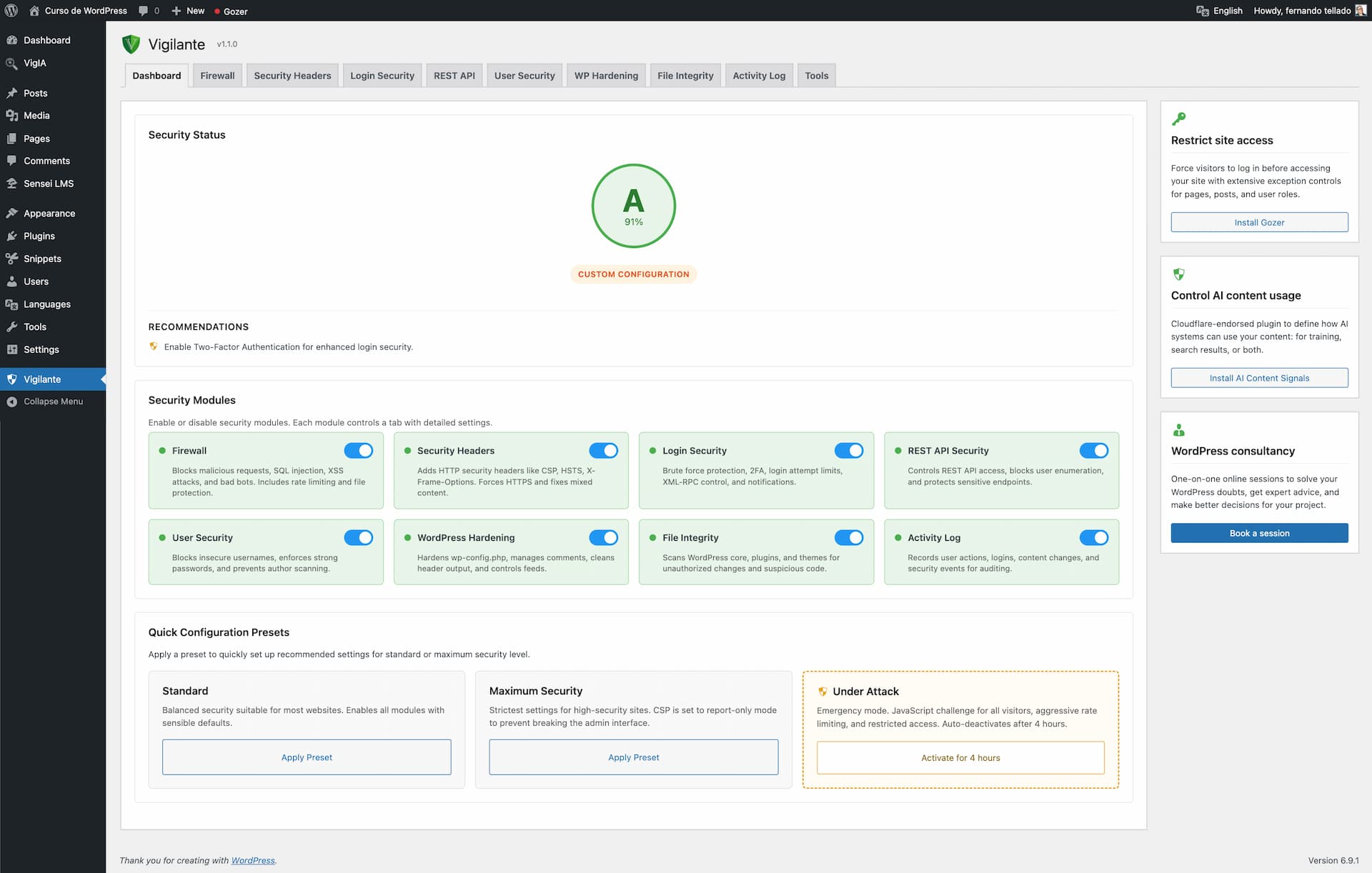
One-Click Security Presets
Choose a preset and get protected instantly:
Standard – Balanced security suitable for most websites. Enables all modules with sensible defaults that won’t interfere with normal site operation.
Maximum Security – Strictest settings for high-security sites. Tighter rate limits, stronger CSP rules, mandatory admin notifications. May require fine-tuning for some setups.
You can always customize individual settings after applying a preset.
Under Attack Mode
Is your site under active attack? Activate Under Attack mode with one click and stop malicious traffic instantly:
- JavaScript challenge – Every visitor must pass an automatic browser verification before accessing your site. Real browsers solve it in seconds, bots get blocked completely
- Aggressive rate limiting – Requests limited to 30 per minute with 15-minute blocks for offenders
- HTTP method restriction – Only GET, POST and HEAD allowed; PUT, DELETE, PATCH, OPTIONS and TRACE are blocked
- Empty user agent blocking – Requests without a user agent header are rejected
- Full XML-RPC lockdown during the attack
- REST API restriction – Only authenticated users can access the REST API
- Auto-deactivation – Mode turns off after 4 hours so you never forget it’s on
- Email notifications when the mode activates and deactivates
- HMAC-signed cookies – Verified visitors get a signed cookie so they only see the challenge once
Under Attack mode works independently from your preset configuration. Your regular settings are preserved and restored when the mode deactivates.
Two-Factor Authentication (2FA)
Add a second verification step to your WordPress login:
- Authenticator app (TOTP) – Google Authenticator, Authy, Microsoft Authenticator or any TOTP-compatible app
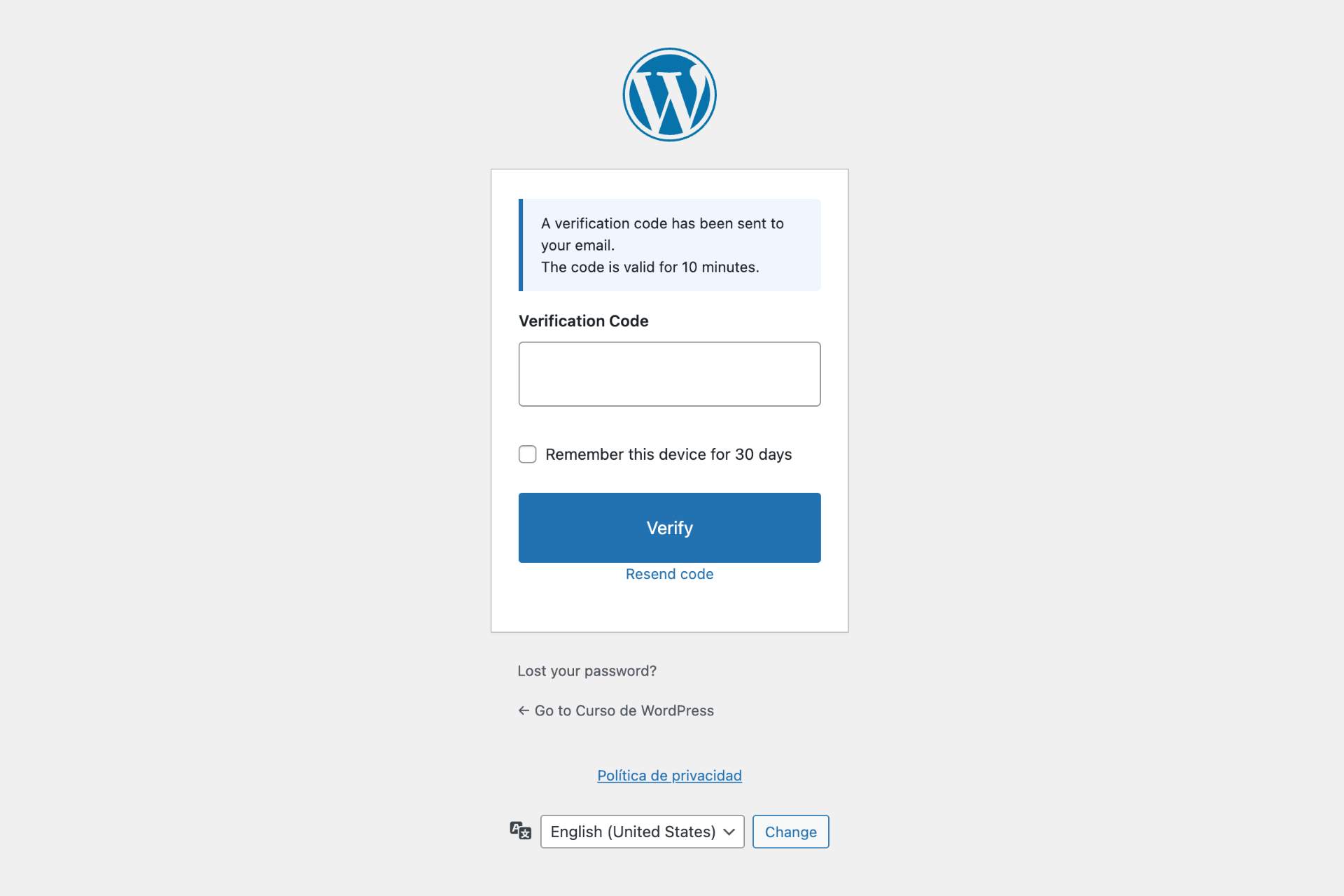
- Email codes – One-time 6-digit verification codes sent via email
- QR code setup directly in user profiles
- 10 backup codes for emergency access if you lose your device
- Configurable grace period for users to set up their authenticator app
- Trusted devices – optionally let users skip 2FA on recognized devices for 30 days
- Role-based enforcement – require 2FA for administrators, editors or any role
- Exclude specific users from 2FA requirements
- Admin tool to reset TOTP for users who lost their authenticator
- Configurable code expiry, attempt limits and email sender name
- User notification emails when 2FA is enabled or the method changes
Firewall Protection
Block malicious requests before they reach WordPress:
- SQL injection blocking
- XSS (Cross-Site Scripting) attack prevention
- File inclusion protection (LFI/RFI)
- Directory traversal blocking
- Bad query string filtering (catches generic suspicious patterns the specific blockers miss)
- Bad bot detection and blocking
- Block requests with empty user agent
- Rate limiting against DDoS and brute force, with optional progressive lockouts
- IP whitelist and blacklist management (IPv4 and IPv6, with CIDR ranges and wildcards)
- User-Agent whitelist and blacklist with partial matching
- Visitor IP detection control – read the real IP directly from the connection (a spoof-proof default) or from a proxy header when behind Cloudflare, a reverse proxy or a load balancer, with an admin notice if a proxy is detected but not configured
- HTTP method restriction
- Server-level file protection via .htaccess: block direct access to wp-config.php, .htaccess, wp-includes/ and sensitive files (.log, .sql, .bak, .ini, debug.log, readme.html, etc.), and optionally wp-cron.php external access
- Block PHP execution in /uploads (one of the most common post-exploit vectors)
- Disable directory browsing
Login Security
Stop unauthorized access attempts:
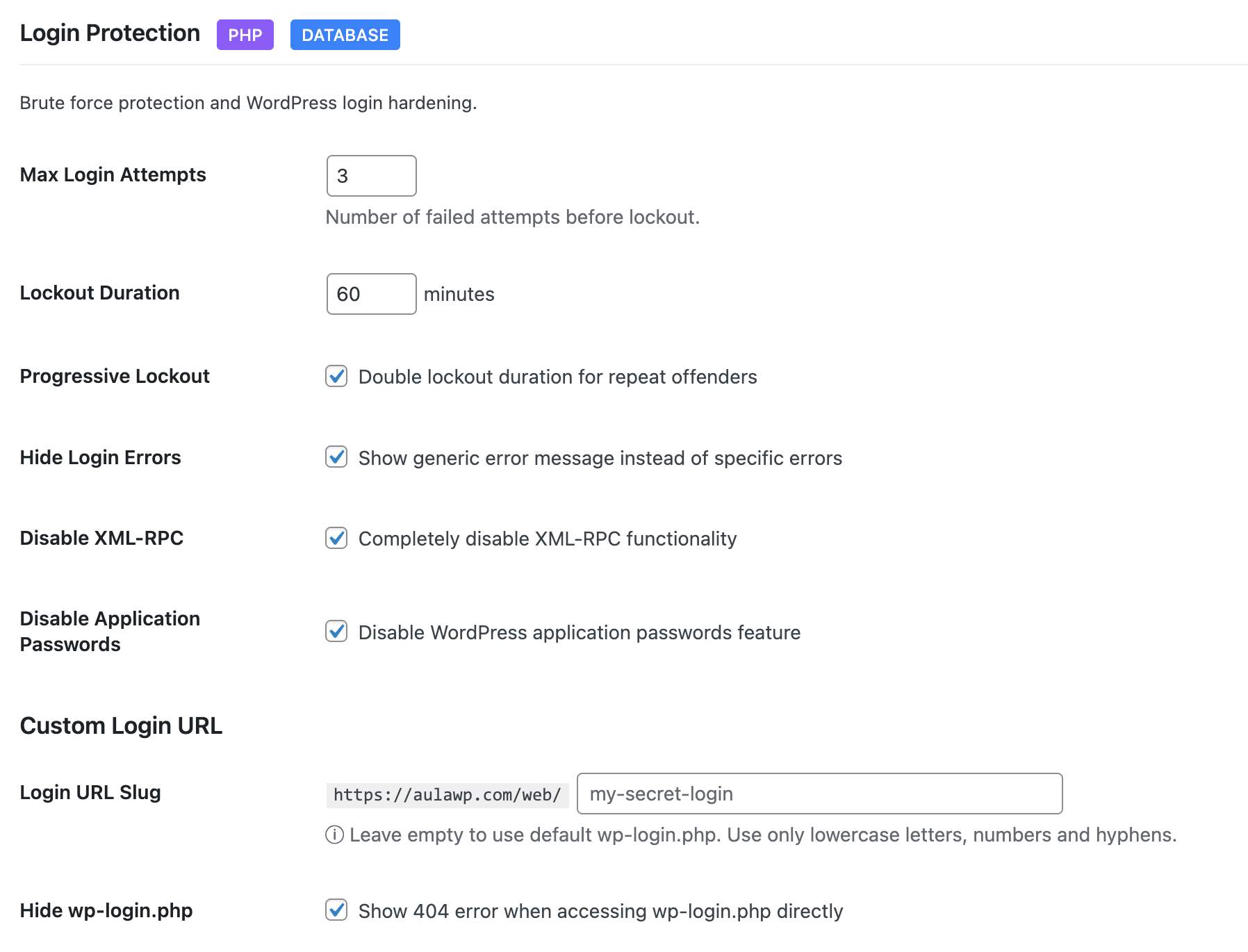
- Limit login attempts with configurable thresholds
- Progressive lockouts – longer blocks for repeat offenders
- Custom login URL – hide wp-login.php from bots
- Login URL change notifications to all admin-area users
- Hide login error messages – don’t reveal valid usernames
- XML-RPC control: leave it on, block only the pingback methods (recommended, it closes the amplification vector while the mobile app and Jetpack keep working), or disable it completely
- Application passwords control
- Email notification when an IP is blocked for exceeding login attempts
- Admin login notifications via email
- IP whitelist for trusted locations
User Security
Comprehensive user account protection:
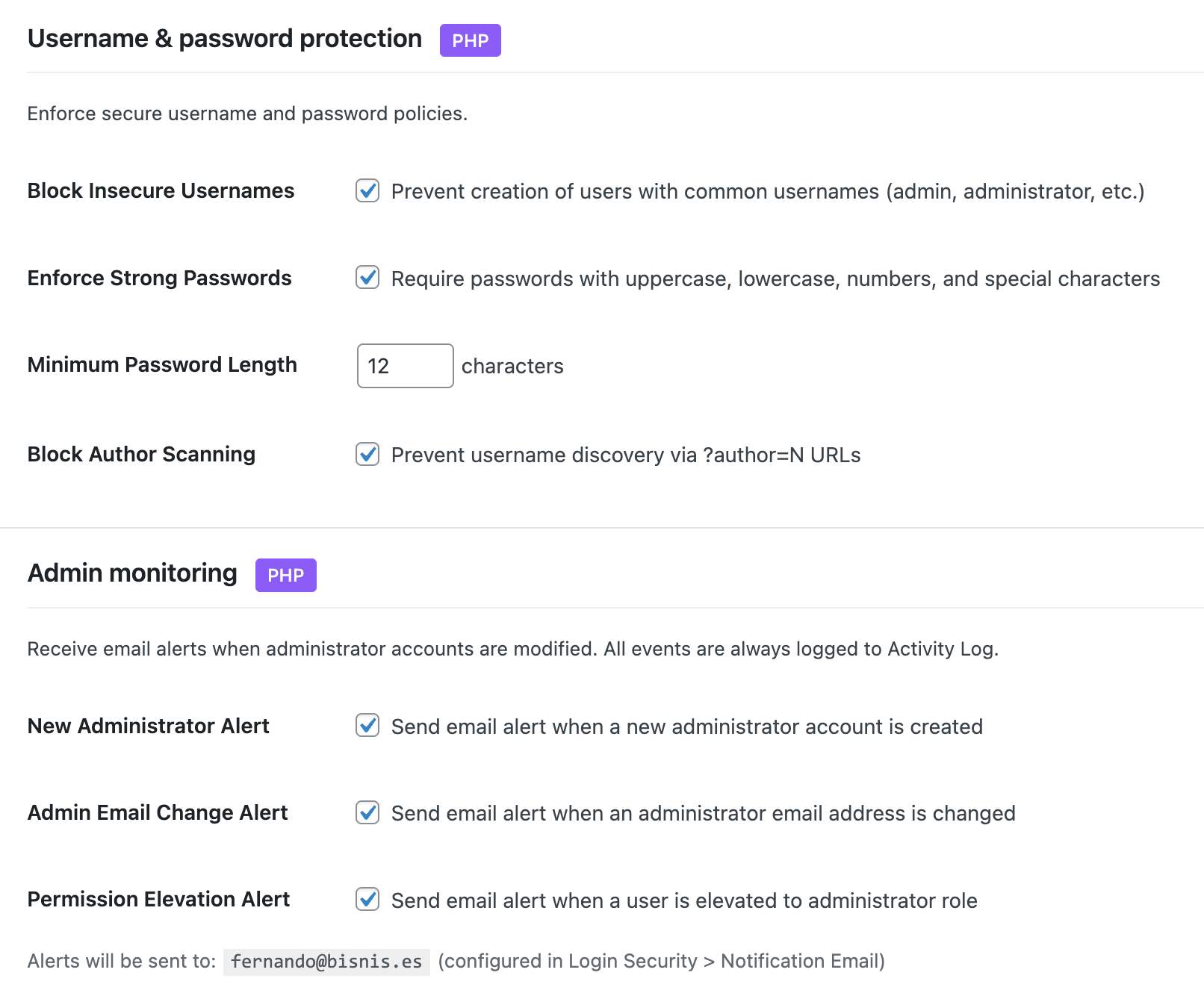
- Block insecure usernames (admin, test, root, etc.) on new registrations
- Warn about existing users with insecure usernames so you can rename or remove them
- Block author scanning – intercept
?author=NURLs so WordPress doesn’t redirect them to/author/USERNAME/and leak the login slug - Force strong passwords with minimum length
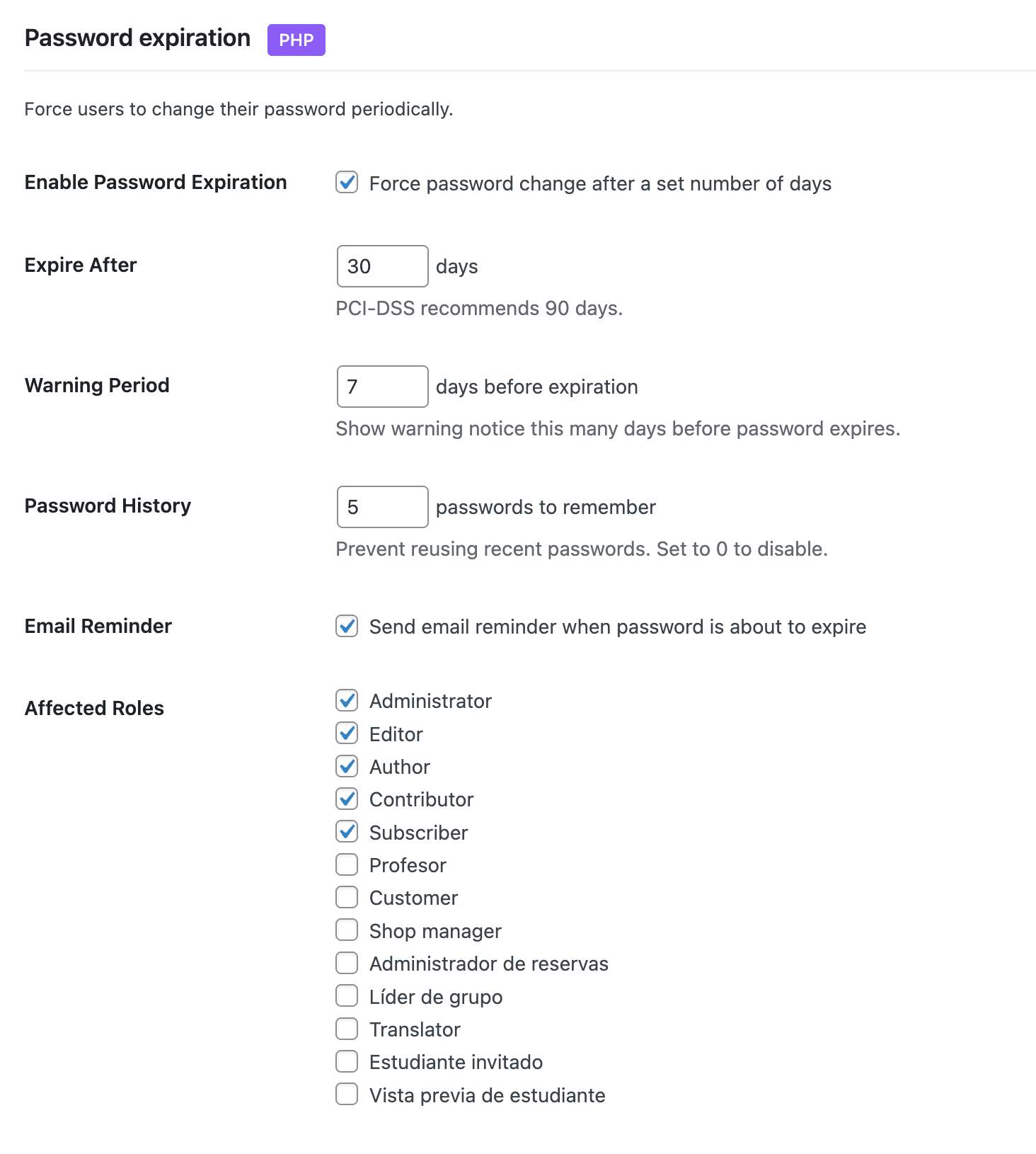
- Password expiration with configurable intervals
- Password history – prevent reusing old passwords
- Force password reset – by specific users, by role, or all users (post-hack recovery)
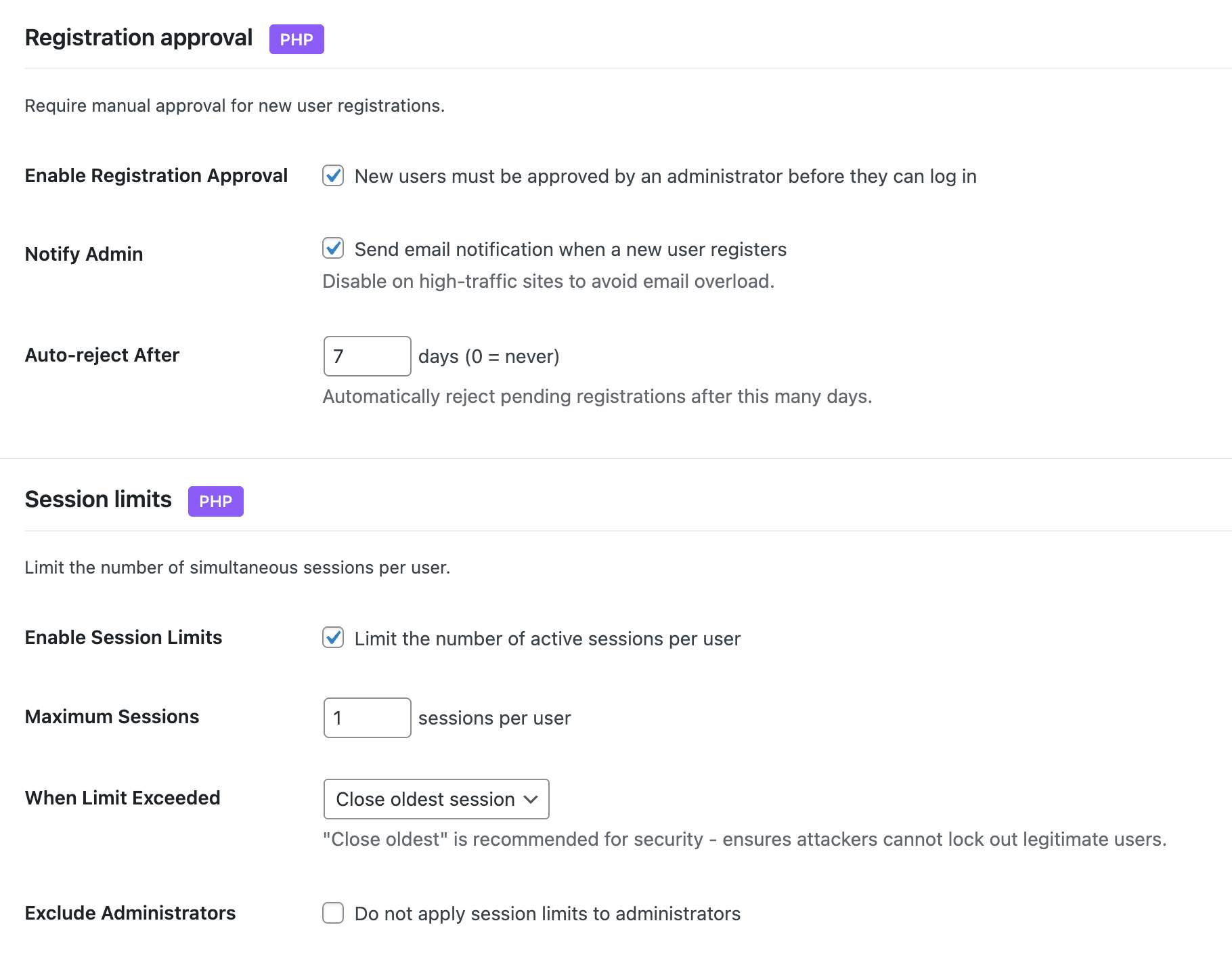
- Session limits – control concurrent logins per user
- Session management – view and revoke active sessions
- Email verification for new registrations
- Registration approval workflow – manually approve new users
- Admin account monitoring – alerts for new admins, email changes, password changes, privilege escalation
- Display name protection – prevent exposing login username publicly
Security Headers
Achieve Grade A security ratings:
- Content Security Policy (CSP) with a WordPress-compatible default policy and Report-Only mode for safe testing before enforcing
- HSTS (HTTP Strict Transport Security) with includeSubdomains and preload options
- X-Frame-Options – prevent clickjacking
- X-Content-Type-Options – prevent MIME sniffing
- Referrer Policy control
- Permissions Policy (camera, microphone, geolocation, payment, USB)
- Cross-Origin policies (COEP, COOP, CORP)
- HTTPS enforcer with automatic mixed content fix
- Server fingerprint hiding – the
Server:header is neutralized andX-Powered-Byand other fingerprinting headers are stripped from responses
File Integrity Monitoring
Detect unauthorized changes to your files and compromised plugins:
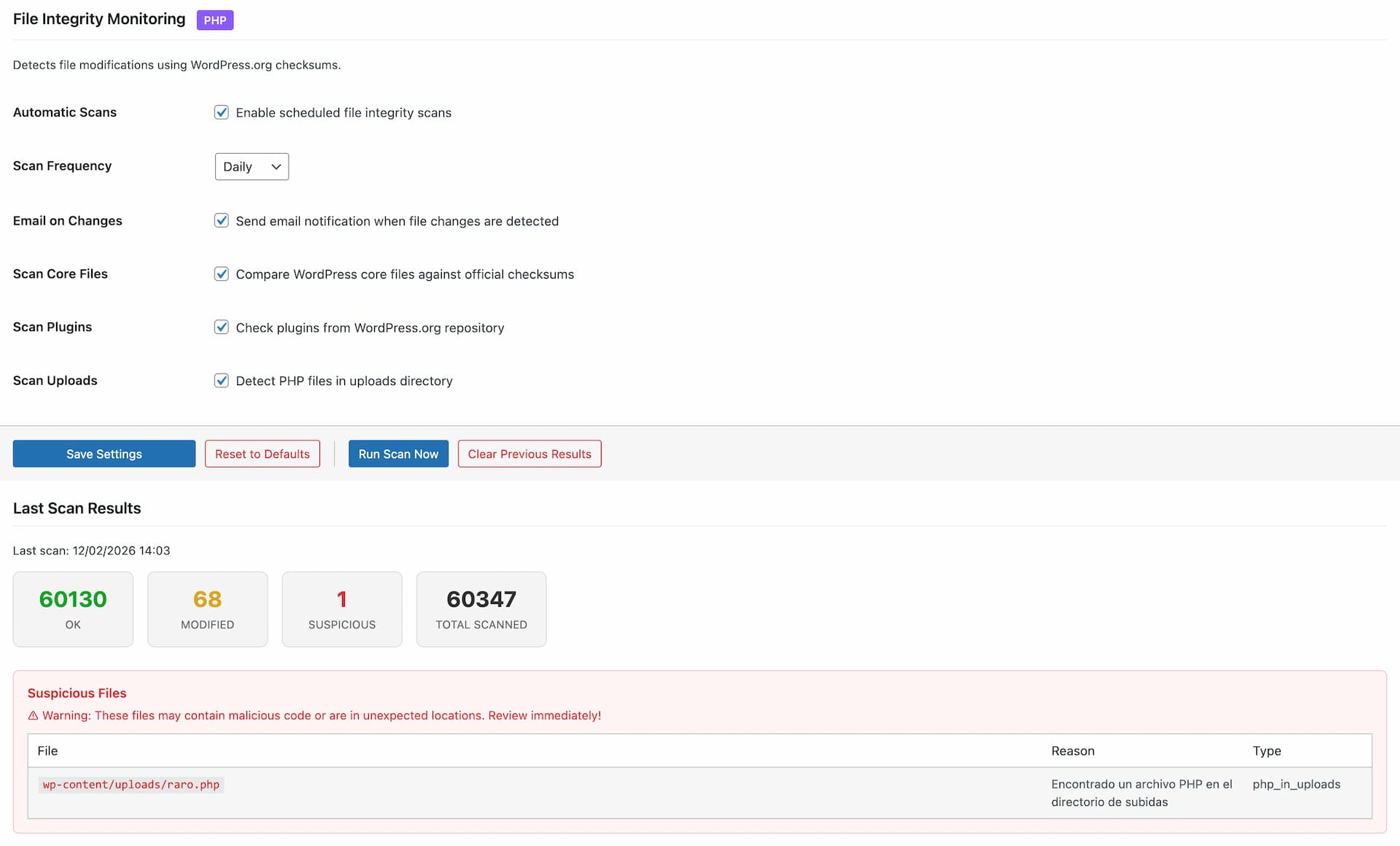
- WordPress core verification against official checksums
- Plugin and theme file monitoring with WordPress.org checksums
- Critical config files (wp-config.php, .htaccess) monitored against baseline, detecting code injection even in files with no official checksum
- Closed and removed plugins detection – daily check against the WordPress.org repository, flagging any installed plugin closed for malware, security issues or guideline violations, including both explicit closures and silent “removed” takedowns, with per-slug Ignore for legacy plugins you can’t uninstall yet
- Line-level diff view of changes, with per-file approval workflow
- Suspicious code scanning for plugins and themes without checksums
- Extra file detection in plugins and themes (files not in original distribution)
- Uploads directory scanning for PHP files, double extensions and .htaccess, with smart classification of dangerous rules vs protective ones
- Root directory scanning for non-core PHP files (common attack vector)
- String concatenation obfuscation detection
- Configurable notification levels and an ignore list to dismiss known files
- Excluded paths and file extensions
- Scheduled automatic scans (daily, weekly)
- HTML formatted email alerts with severity sections, including a dedicated section for closed plugins
Security Audit
Track everything happening on your site:
- Successful and failed login attempts
- Two-factor authentication events
- User account changes (creation, deletion, role changes)
- Content modifications (posts, pages)
- Plugin and theme activations/deactivations
- Security events and blocked threats
- HTTP request method tracking and filtering (GET, POST, PUT, DELETE)
- Enhanced log detail popup with grouped sections and quick actions
- One-click add IP or User-Agent to firewall whitelist/blacklist from log entries
- Direct IP lookup links to AbuseIPDB
- Configurable retention period, CSV export, and filtering by event type, severity, request method or date
Audit Alerts – get an email when the audit log points to something worth your attention, off by default and configured under Security Audit:
- Immediate alerts the moment a serious event is logged, by minimum severity (a new administrator, a closed plugin or a privilege escalation are all logged as Critical)
- Threshold alerts when a category spikes – firewall blocks, login failures, user, plugin, file integrity, security, system and content events – over a 30-minute, 1, 6 or 24 hour window, counting only warning and critical events so routine activity never trips them
- A single anti-repeat cooldown keeps a storm of events down to one notice instead of flooding your inbox
- Active alerts surface in Settings & Tools, the Dashboard, the Configuration Score and the Security Check
- “Send test email” button to confirm delivery
Security Check
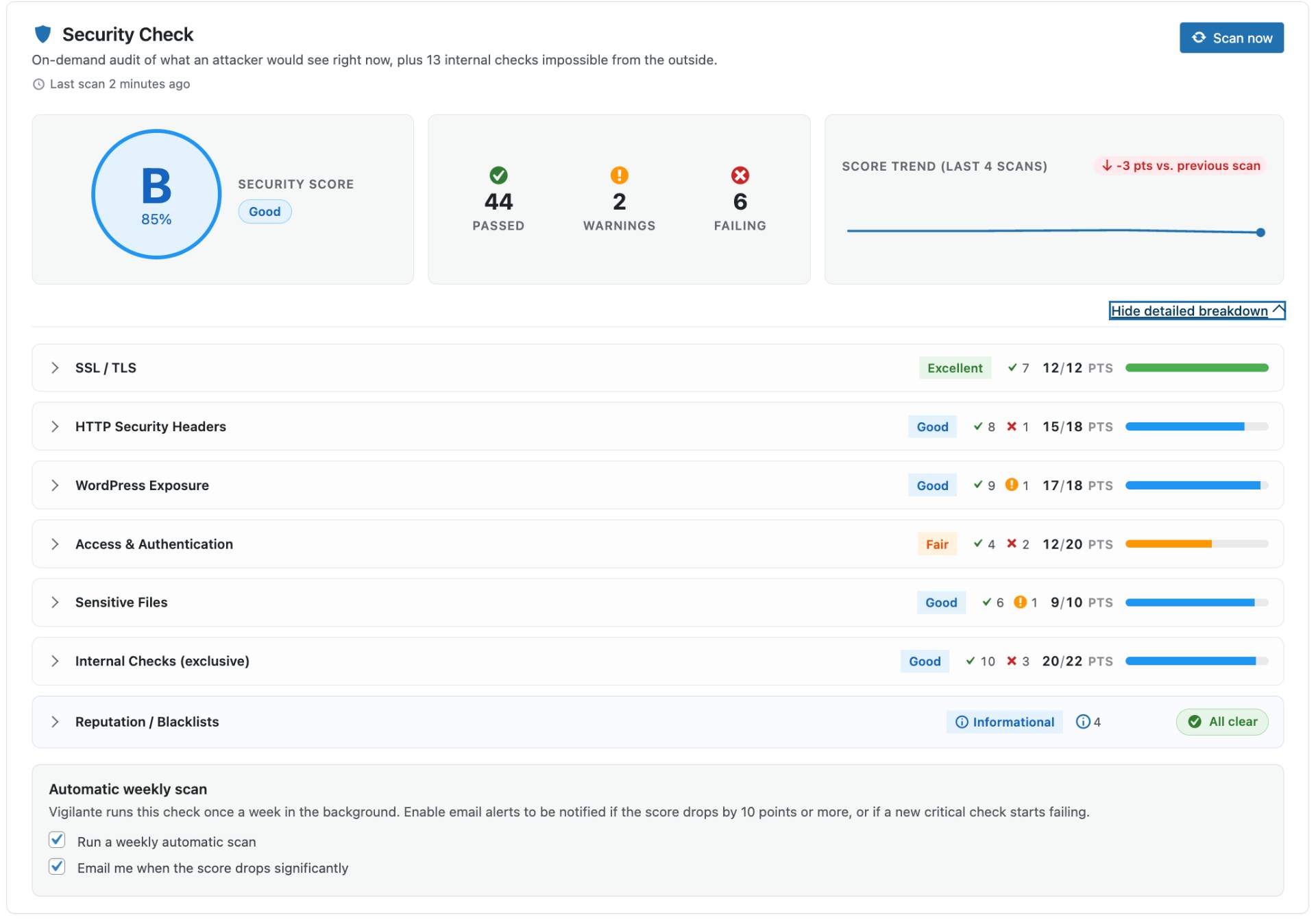
On-demand security audit built into the Dashboard. No external services, no accounts, no API keys – everything runs on your server:
- 40+ checks across 6 categories: SSL/TLS, HTTP Headers, WP Exposure, Access & Auth, Sensitive Files and Internal Checks
- Single 0-100 score with A-E grade, plus per-category breakdown and explanatory details for every check
- 15 exclusive internal checks impossible from the outside: PHP end-of-life status, pending updates, inactive plugins, closed or removed plugins, file permissions, default salts detection,
wp_table prefix,adminusername, administrators without 2FA enrolled, module status, recent audit errors, last File Integrity scan result and whether audit alerts are configured - DNS-only reputation lookup against Spamhaus ZEN, Barracuda BRBL and SpamCop SCBL (informational – listings are flagged but don’t deduct from the score)
- Two-phase scan: fast local checks appear in under a second, remote checks stream in as they complete
- Weekly automatic scan with opt-in email alert if the score drops by 10+ points or a new critical check starts failing
- 30-scan history with sparkline trend and delta chip
- “Go to setting” fix link on every failing check, jumping straight to the exact Vigilant field that resolves it
- Smart header diagnostics that report “configured but not being served” when a cache/CDN overrides your headers
WordPress Hardening
Layered protection at the WordPress level – admin, content, head, feeds and database:
- Lock down the admin: disable the built-in plugin and theme file editor, block installations and updates from the admin area, and force HTTPS for the admin area. Compatible with any hosting layout, respecting values already in place and never overriding them
- Disable WordPress’s internal page-view cron when you already have a real server-side cron job configured
- Dashboard warning when debug mode is left enabled in production, so error output never leaks to visitors
- Hide your WordPress version everywhere it can leak: from the HTML head, from RSS and Atom feeds, and optionally from every script and style URL on the front-end (stripping only the WordPress version itself, leaving plugin and theme cache busting intact)
- Automatic daily removal of readme.html, license.txt and licencia.txt from the WordPress root, which otherwise expose your version
- HTML head cleanup – remove the RSD link, Windows Live Writer manifest, shortlink header and REST API discovery link
- Database hardening – check for the default
wp_table prefix and one-click rename tool with full backup before the change - Comment security – honeypot field against spam bots, force moderation on every new comment, close comments on old posts, disable pingbacks and trackbacks
- Feed management – completely disable RSS and Atom feeds, or only disable them when the site has no published content
REST API Security
Control API access to your site:
- Three access modes: public (default WordPress behavior), authenticated only (closes the API to anonymous visitors), or selective (custom allow/block lists)
- Block user enumeration via
/wp-json/wp/v2/users - Protect any list of sensitive endpoints from anonymous access
- Per-plugin compatibility toggles so authenticated mode doesn’t break the front-end: WooCommerce, Contact Form 7, Gravity Forms, WPForms, Elementor, Jetpack. oEmbed and Site Health endpoints stay accessible by default
Security Tools
Utilities included:
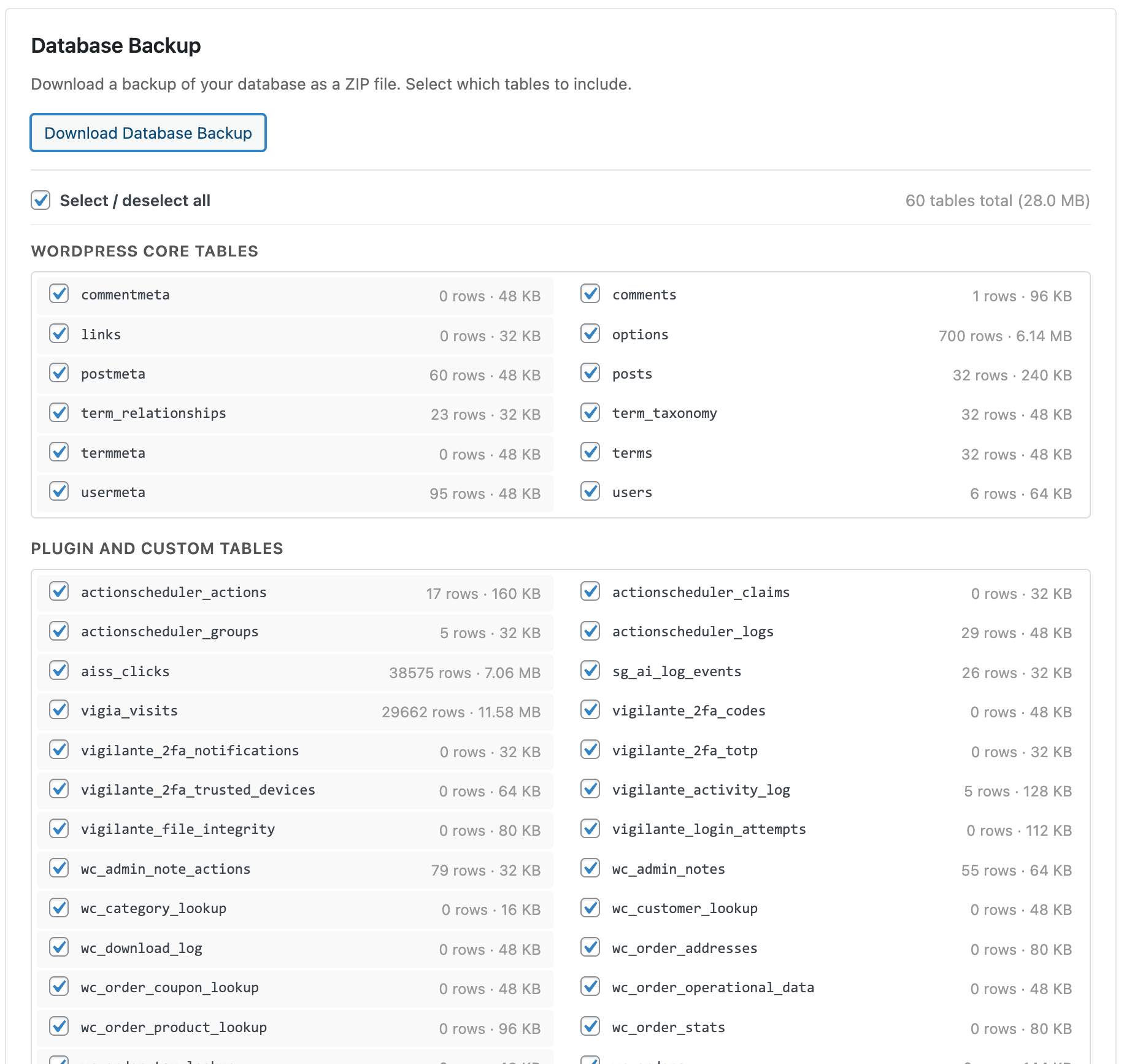
- Database Backup – Download a full or partial database backup as ZIP with table selection
- Database Prefix Change – Change the default wp_ prefix to a random secure prefix
- Export/Import Settings – Transfer your configuration between sites
- Manual Backup – Create backups of .htaccess and wp-config.php on demand
- Reset to Defaults – Start fresh with one click
Safe by Design
Your existing .htaccess, wp-config.php and robots.txt are automatically backed up before any modifications. Backups are stored in the WordPress database, never as files under the web root, and verified with MD5 checksums.
When you deactivate Vigilant, all security rules are automatically removed and your original configuration files are restored. No leftover code, no broken sites.
Why Vigilant?
Most WordPress security plugins reserve their best features for paid plans. Vigilant gives you everything upfront – no premium tier, no feature locks, no upsells. Firewall, 2FA with authenticator app, security headers, file integrity scanner, security audit, on-demand Security Check with weekly regression alerts, and more. All free, all maintained, all following WordPress coding standards.
We maintain a detailed feature comparison between Vigilant and other popular security plugins (Wordfence, Solid Security, AIOS, Sucuri, SG Security). See what each offers in its free version and where Vigilant fills the gaps.
Support
Need private support or custom development?
Do you need one-on-one help, priority troubleshooting, or a custom feature, integration, or tweak built specifically for your site? I offer private support and custom development. Just contact me and tell me what you need.
Need help or have suggestions?
Love the plugin? Please leave us a 5-star review and help spread the word!
About AyudaWP
We are specialists in WordPress security, SEO, AI and performance optimization plugins. We create tools that solve real problems for WordPress site owners while maintaining the highest coding standards and accessibility requirements.
スクリーンショット

インストール
- Upload the plugin files to
/wp-content/plugins/vigilante/or install directly from the WordPress plugin repository - Activate the plugin through the ‘Plugins’ menu in WordPress
- Go to ‘Vigilant’ in the admin menu
- Apply a security preset or customize individual module settings
Requirements:
- WordPress 6.2 or higher
- PHP 7.4 or higher
- Apache or LiteSpeed server (for .htaccess features)
- SSL certificate recommended for HSTS
FAQ
-
Will this plugin slow down my site?
-
No. Vigilant is optimized for performance. The firewall uses efficient pattern matching, database queries are cached with transients, and .htaccess rules execute at server level before PHP even loads.
-
What happens when I activate the plugin?
-
Vigilant immediately backs up your existing .htaccess and wp-config.php to the database, then applies default security settings. All modules are enabled with balanced defaults suitable for most sites.
-
What happens when I deactivate the plugin?
-
All security modifications are automatically reverted. The .htaccess rules are removed, wp-config.php constants are restored to their original values, and scheduled tasks are cleared. Your site returns to its pre-Vigilant state.
-
How does two-factor authentication work?
-
Vigilant supports two 2FA methods. With the authenticator app (TOTP), you scan a QR code in your profile to link an app like Google Authenticator or Authy, then enter a 6-digit code from the app on every login. With email codes, you receive a one-time code via email after entering your password. If enabled by the site administrator, you can mark your device as trusted to skip 2FA for 30 days.
-
What if I lose my phone or authenticator app?
-
When you set up TOTP, Vigilant generates 10 backup codes. You can use any of them as a one-time replacement for the authenticator code. If you run out of backup codes, an administrator can reset your TOTP from the plugin settings.
-
What if I don’t receive the 2FA email code?
-
Check your spam folder first. You can click “Resend code” on the verification form. Codes expire after 10 minutes by default. If issues persist, an administrator can temporarily disable 2FA from the plugin settings.
-
Can I switch between email and authenticator app?
-
Yes. Go to Login Security > Two-Factor Authentication and change the verification method. If notifications are enabled, affected users will receive an email explaining the new method and how to set it up.
-
Which user roles require 2FA?
-
By default, 2FA is enforced for administrators and editors. You can customize which roles require 2FA in the Login Security settings, and exclude specific users individually.
-
How do I recover if I’m locked out?
-
Access your site via FTP/SFTP and either rename the plugin folder to disable it temporarily, or delete the
vigilante_login_attemptstable rows for your IP address in the database. -
Will the firewall block legitimate users?
-
The firewall is configured to allow normal WordPress operations, including the block editor, REST API, and popular page builders. If you experience issues, you can whitelist specific IPs or adjust rate limiting thresholds.
-
Can I use this with other security plugins?
-
While Vigilant works standalone, running multiple security plugins can cause conflicts. We recommend testing in a staging environment first if you need to combine security solutions.
-
Does this work with caching plugins?
-
Yes. Vigilant is compatible with popular caching plugins. The firewall runs before cache layers, and .htaccess rules don’t interfere with caching mechanisms.
-
Does this work with WooCommerce?
-
Yes. Vigilant includes compatibility settings for WooCommerce. The REST API security module automatically allows WooCommerce endpoints, and the firewall won’t block payment gateway connections.
-
How do I test my security headers?
-
Use the built-in header testing tool in the Security Headers tab, or visit securityheaders.com with your site URL to get a security grade.
-
What is Security Check?
-
Security Check is an on-demand audit built into the Dashboard. It runs 40+ checks across 6 categories (SSL/TLS, HTTP headers, WordPress exposure, access and authentication, sensitive files, and internal checks) and returns a 0–100 score with an A–E grade. Unlike external online scanners, it runs entirely on your server and has access to 14 exclusive internal checks: PHP end-of-life status, pending updates, closed/removed plugins, file permissions, default salts detection, administrators without 2FA enrolled, and more.
-
Does Security Check send my data to an external service?
-
No. All checks run on your server. The only external traffic is three DNS-only lookups against public blacklists (Spamhaus, Barracuda, SpamCop) for the reputation category — these are standard DNS queries with no authentication, no API keys, and no payload beyond your site’s IP address. If you disable the reputation category, Security Check makes zero external network calls.
-
How often should I run Security Check?
-
Run it manually after any significant change (plugin update, server migration, new user role configuration). For ongoing monitoring, enable the weekly automatic scan from the widget. You’ll only receive an email if the score drops by 10 points or more, or if a new critical check starts failing — so no spam from routine scans.
-
What is password expiration?
-
You can require users to change their passwords after a set number of days (30, 60, 90, etc.). Users receive warnings before expiration and are forced to change their password on next login when it expires. Password history prevents reusing recent passwords.
-
What is registration approval?
-
When enabled, new user registrations require manual approval by an administrator before the account becomes active. Pending users cannot log in until approved. You can configure auto-rejection after a set number of days.
-
What does email verification do?
-
New users must verify their email address by clicking a link before their account becomes active. This prevents fake registrations and ensures valid contact information.
-
How do session limits work?
-
You can limit how many concurrent sessions each user can have. When the limit is reached, either the new login is blocked or the oldest session is terminated, depending on your configuration.
-
Can I export the security audit log?
-
Yes. The security audit log can be exported to CSV format for external analysis or compliance reporting. You can also filter logs by event type, user, or date range before exporting.
-
What files does the integrity scanner check?
-
The scanner compares WordPress core files, plugin files, and theme files against official checksums from WordPress.org. Plugins and themes without available checksums are also scanned using strict obfuscation pattern detection. The uploads directory is scanned for PHP files, double extensions, and .htaccess files. Extra PHP files not present in original distributions are detected and, if they contain suspicious code, automatically flagged as suspicious.
-
How often does the file integrity scan run?
-
You can configure automatic scans to run daily or weekly. You can also run manual scans at any time. Email notifications support three levels: all issues, suspicious files only, or disabled.
-
What is the difference between Standard and Maximum presets?
-
Standard applies balanced settings suitable for most sites. Maximum applies stricter rules: lower rate limits, tighter CSP policies, required admin notifications, session limits, and more aggressive hardening. Maximum may require adjustments for sites with complex functionality.
-
Where are backups stored?
-
Configuration backups (.htaccess, wp-config.php, robots.txt) are stored in the WordPress database, not as files under the web root, so they can never be served over HTTP. A database backup you download is generated as a temporary ZIP with an unguessable name and removed right after the download.
-
What is Under Attack mode?
-
Under Attack mode is an emergency feature you can activate when your site is experiencing an active attack. It adds a JavaScript challenge that real browsers solve automatically in a few seconds, while bots and automated scripts are blocked completely. It also applies aggressive rate limiting, blocks restricted HTTP methods, and restricts API access.
-
Will Under Attack mode affect my logged-in users?
-
No. Logged-in users, admin pages, cron jobs, AJAX requests, and the login page are all excluded from the JavaScript challenge. Only unauthenticated frontend visitors see the verification page.
-
What if I forget to turn off Under Attack mode?
-
It automatically deactivates after 4 hours. You will also receive an email notification when it activates and deactivates.
-
Does Under Attack mode change my regular security settings?
-
No. It operates independently from your preset configuration (Standard or Maximum). Your regular settings are untouched and continue working normally after Under Attack mode deactivates.
-
How does the database backup work?
-
Go to Vigilant > Tools > Database Backup. Select which tables to include (or leave all selected), then click Download. The backup is generated as a temporary ZIP with an unguessable name, streamed to your browser and deleted from the server immediately after the download.
-
What does changing the database prefix do?
-
WordPress uses wp_ as default table prefix. Changing it to a random prefix adds a layer of protection against SQL injection attacks that target default table names. Go to Vigilant > WP Hardening > Database Hardening. Always create a backup before changing the prefix.
-
How do I exclude management services like ManageWP from the firewall?
-
Go to Vigilant > Firewall > User-Agent Lists and add the service name (e.g., ManageWP, MainWP, UptimeRobot) to the User-Agent Whitelist. Partial matching is used, so entering “ManageWP” will match any User-Agent string containing that keyword.
If you also use a custom login URL, add the management dashboard’s IP address to the firewall IP Whitelist as well. Some operations (for example pushing a plugin update from MainWP) reach wp-admin without a WordPress session and with a generic WordPress user agent rather than the service name, so the User-Agent rule alone would not match them. A whitelisted IP is allowed past the hidden login/wp-admin protection (it still has to authenticate).
-
Can I send security notifications to someone other than the site admin?
-
Yes. Go to Vigilant > Settings & Tools > Notification settings. You can add additional email recipients (one per line) and optionally uncheck the WordPress admin email. This is useful for maintenance professionals managing multiple sites who need to receive all security alerts.
-
Can I customize notification recipients programmatically?
-
Yes. Use the
vigilante_notification_recipientsfilter. It receives and returns an array of email addresses used for all administrative notifications:add_filter( 'vigilante_notification_recipients', function( $recipients ) { $recipients[] = 'security-team@example.com'; return $recipients; } );
評価


貢献者と開発者
Vigilant – 100% Free Security Suite: Firewall, 2FA, Login, Headers, Scanner… はオープンソースソフトウェアです。以下の人々がこのプラグインに貢献しています。
貢献者

変更履歴
2.9.8
- Improved: the factory settings no longer force HTTPS anywhere. Force SSL Admin, which writes FORCE_SSL_ADMIN into wp-config.php, the HTTP to HTTPS redirect and Fix Mixed Content all ship off, joining HSTS and the site address rewrite, which were already off. Fix Mixed Content cannot break anything, since it only rewrites addresses of the site itself and only on a site already served over HTTPS, but a setting whose own description says it rewrites http to https does not belong in the factory configuration of a plugin that deliberately does not decide whether a site is on HTTPS. It is one click away for anyone who has just migrated and wants their old content rewritten. Force SSL Admin was written on activation with no check that the site answers over HTTPS at all, so activating the plugin on a site published over HTTP sent the admin to an address that may not exist, and on a network any subsite could do it for everybody. Whether a site is on HTTPS is the owner decision, and it now matches what HSTS and the site address rewrite already did.
- Improved: “Upgrade Insecure Requests” is now a setting of its own, off by default. It used to ride along with Fix Mixed Content, which ships on, so every site served over HTTPS was telling browsers to upgrade every http:// request, including the ones pointing at other people’s servers: anything hosted on a domain with no HTTPS stopped loading instead of loading insecurely, and there was no way to keep the rest of the mixed content handling without it. Fix Mixed Content now does only what its name says, rewriting addresses of the site itself. Sites updating keep sending the directive if they had Fix Mixed Content on, so nothing changes for them until they decide otherwise, and they keep Fix Mixed Content itself too: the new default only applies to new installations.
- Improved: the password requirements a new installation gets are the two that block genuinely guessable passwords, well-known common passwords and the username inside the password. The four character class requirements, uppercase, lowercase, number and symbol, ship off for anyone who wants them. Current guidance is that what makes a password weak is being guessable, not lacking a symbol, and composition rules push people towards predictable substitutions. Existing sites keep the rules they have.
- Improved: a new installation now watches the two events that mean someone gained power, a new administrator appearing and a role being raised, since those are the signature of an account takeover and are rare enough not to become noise. The other two administrator alerts stay opt-in.
- Improved: session limits are on for a new installation, with the three concurrent sessions and the close the oldest behaviour that were already the suggested values.
- Improved: password expiration ships off. Forced rotation is no longer recommended and it is by far the biggest source of support here, with people locked out in the middle of a task. The feature stays for anyone who has to comply with a policy that demands it, and the Configuration Score still points at it.
- Improved: the Standard preset leaves XML-RPC as a new installation does, blocking only the pingback methods. It used to disable XML-RPC completely, which is what Maximum is for.
- Improved: Maximum Security now switches the audit alerts on, both the immediate one for critical events and the threshold one, because a configuration by that name that never tells you anything happened is half a product. Under Attack mode builds on Maximum, so it gets them for as long as it is on and gives your settings back when it is switched off. The shared cooldown keeps a sustained attack from turning into a flood of email.
- Improved: restoring the default settings no longer deletes what you typed in. The IP and user agent lists, the custom login address, the two factor configuration, the integrity scan exclusions and the extra alert recipients are kept by both reset buttons and by the Standard preset. The security settings still go back to their defaults; nobody presses a button called restore defaults expecting their firewall whitelist to disappear.
- Fix (Multisite): changing the database prefix no longer leaves the subsites without roles. The roles option is stored once per site and only the one belonging to the main site was renamed, so every subsite ended up with an empty role dropdown and fatal errors in plugins that assume a role exists. Every site of the network is now visited, and a subsite whose roles option carries an unexpected name from an earlier migration is repaired. Reported by Albert Calzada.
- Fix (Multisite): the database prefix can no longer be changed from a subsite. It read the prefix of the site it was invoked from, so from a subsite it would have renamed only that site tables while rewriting the prefix shared by the whole network. The tool is now available on the main site to a network administrator, and explains itself elsewhere.
- Fix (Multisite): the settings that write wp-config.php and .htaccess are managed from the main site only. Those two files are shared by the whole network while the settings are stored per site, so every save from any site rewrote them from that site own options: the last one to save won, silently undid the rest, and each screen went on showing its own stored value instead of what the file actually said. Activating or deactivating the plugin on a subsite did the same without anyone touching a setting. Subsites now see those sections as read only, and the writes are refused anywhere else.
- Fix (Multisite): a subsite is no longer offered the database and configuration backups. Both the database and wp-config.php belong to the whole network, so a backup taken from a subsite would carry every other site and all of the network users, credentials and authentication salts included.
- Fix: changing the database prefix no longer renames settings that have nothing to do with the prefix. Only one option name is built from the table prefix, the one holding the roles; everything else that starts with the same letters is a literal name owned by WordPress or by a plugin. They were all renamed, so the privacy policy page selection was lost and plugins that keep their configuration in an option named after wp_, WP Rocket among them, found nothing where they store it. The same applied to per user data, so learner state and translation settings were renamed too.
- Fix: changing the database prefix no longer throws you out of your session and into the WordPress installation screen. wp-config.php is a PHP file, so the opcode cache kept serving the previous prefix for a couple of seconds after it was rewritten, and any request arriving in that window started WordPress against tables that no longer existed: it read the site as not installed and offered the installer, and the missing users table made the session cookie fail, which WordPress answers by clearing it. The file is now dropped from the opcode cache as soon as it is written.
- Fix: the object cache is emptied after a database prefix change. Options are served from it, and the renamed rows were changed behind the back of WordPress, so a site with a persistent object cache carried on with the old names.
- Fix: the Standard preset now applies every default, which is what it says it does. It named barely a dozen fields, so applying it after Maximum kept Maximum password rules, its four administrator alerts, its one session limit and its thirty day password expiry: the preset that promises sensible defaults applied almost none of them. It is now built from the defaults themselves, so it cannot drift again, and it leaves alone the things the site owner typed in, the IP and user agent lists, the custom login address, two factor configuration, scan exclusions and extra notification recipients. Reset to Defaults is still there for a clean slate.
- Fix: applying a preset no longer mangles the lists of roles. Presets were layered with a merge that combines lists position by position instead of replacing them, so applying Standard on top of Maximum turned the two roles whose passwords expire into Maximum five with the first two overwritten, and an empty list in a preset cleared nothing at all.
- Fix: Under Attack mode no longer mangles the lists of roles it inherits from Maximum, for the same reason the presets did.
- Fix: restoring the default settings no longer disables XML-RPC completely. A new installation blocks only the pingback methods, but the reset button and the reset to defaults action left the setting unset, and unset means blocked completely, so the defaults you got from the button were not the defaults you got from installing.
- Fix: the Security Check no longer reports sites as listed on a blacklist when they are not. The blacklists answer with a reserved code to say they are refusing the query, typically because the server asks through a public DNS resolver, and any answer at all was read as a listing, so sites were told to request a delisting that did not exist. Private and reserved addresses are no longer queried either.
2.9.7
- Improved: XML-RPC moves to WP Hardening, next to the pingback and trackback settings it relates to, and becomes a single choice with three options instead of two separate checkboxes under Login that could be ticked at the same time and contradict each other. The settings search already pointed to WP Hardening for XML-RPC while the setting itself was under Login, so looking for it led to the wrong tab. A new installation now blocks the pingback methods, which is the part abused for amplification, and leaves the rest reachable so the WordPress app, Jetpack or a remote manager work out of the box; disabling XML-RPC completely is still the recommended choice and one click away. Brute force through XML-RPC stays covered either way, because those logins go through the same lockout as any other. Sites updating keep exactly what they had, and the Security Check resolves the setting the same way the code that enforces it does.
- Improved: the settings search now covers every setting, and its keywords can be translated. It was a hand-written list that indexed 68 of the 131 rows, so searching for XML-RPC, application passwords, session limits, password expiry or the header settings returned nothing; and its search terms were hardcoded, so only English and Spanish found anything by synonym. Every locale can now supply its own terms.
- Improved: the Security Headers tab now presents Content Security Policy, HTTPS and HSTS one after another, since the three are related, and HSTS explains what it actually does instead of repeating the HTTPS text. Its warning is the one that matters for HSTS: browsers remember it for the whole max age even if it is switched off later, so a site that loses its certificate stays unreachable until it expires. HSTS can only be enabled on a site whose address already starts with https, because turning it on anywhere else takes the site offline for every browser that honours it.
2.9.6
- Improved: the Security Headers tab now has an HTTPS section with the three settings that used to run with no way to see or change them: redirect HTTP to HTTPS, fix mixed content, and rewriting the site address to https on activation. The last one now ships off. It used to be on, so activating the plugin rewrote the WordPress Address and Site Address to https without asking and without checking that the site answered over HTTPS, which on a site published over HTTP left it pointing at an address that may not respond. Deactivating never undid it. It now only runs when it is switched on and the request activating the plugin is itself over HTTPS. Sites whose addresses a previous version already rewrote keep them.
- Improved: a “Disable XML-RPC Pingback” checkbox in Login Security, for sites that need the rest of XML-RPC for the mobile app or Jetpack. The setting existed and worked, but had no control anywhere in the interface.
- Improved: the HTTP to HTTPS redirect now only acts on sites whose address is already an https:// one. On a site still published over HTTP it sent every request to an address that might not answer. Sites on HTTPS keep redirecting exactly as before.
- Improved: the plugin now shows the same name in the plugins list as it does on WordPress.org. Only the displayed name changes; settings, data and updates are untouched.
- Fix: image uploads from the editor work again on WordPress 7.1 when the Content Security Policy is enabled. WordPress 7.1 processes images in the browser before uploading them, and it loads its WebAssembly engine from a blob: URL, which is governed by the connect-src directive. blob: was missing there, so that load was blocked. WordPress never noticed, because its own support test only checks whether blob: workers are allowed, which this policy already permitted, so it went ahead anyway and the upload failed with an error blaming the file format. blob: has been added to connect-src in the default and Maximum policies, and the compatibility warnings now check that directive too. Reported by Antonio Cambronero.
- Fix: saving the Security Headers tab no longer switches off the HTTPS redirect and the mixed content fix, and saving Login Security no longer switches off the XML-RPC pingback block. Settings with no field in their own form were treated as unticked checkboxes on every save, so pressing Save quietly turned them off.
- Fix: File Integrity no longer reports core files as permanently missing on sites that are not in English. The localized checksum manifest published by WordPress.org lists the language files of Akismet and of the default themes, which are not part of core and do not travel in the core language pack, so deleting an unused plugin or theme, exactly what the Security Check recommends, left findings that never cleared.
- Fix: the Security Check no longer fails its own REST /wp/v2/users/me test on a site with factory settings. Blocking author enumeration, which is on by default, unregisters that route, and a route that does not exist answers 404 instead of the 401 the test demanded. A correctly protected site scored 97 out of 100, and the only way to recover the points was to switch a real protection off. The sibling test on /wp/v2/users already accepted that 404.
- Fix: the mixed content test no longer counts ordinary links to http:// addresses. It examined every href on the page, so a plain outbound link, or a canonical or feed link, was reported as insecure content. Only resources the page actually loads are counted now.
- Fix: header values are stripped of line breaks and double quotes before being written to .htaccess. A line break in a value ended the directive and turned the rest into server configuration of its own.
- Fix: uninstalling the plugin now removes the safety copies it kept of wp-config.php and .htaccess. Those copies are taken in the database before the plugin writes to either file, and they were not on the uninstall list, so a copy of wp-config.php, database credentials and authentication salts included, stayed in the options table after the plugin was deleted. The per-backup records and the plugin status cache are cleared too.
- Fix: removed three settings that no code ever read: two left over from earlier versions, and one behind a firewall feature the readme described but that was never implemented in any release.
2.9.5
- Improved: the daily password expiry cron no longer runs one database query per user. Asking WordPress for user IDs alone leaves the usermeta cache empty, so every reminder check went back to the database; the whole set is now primed up front. Sites with many users in the affected roles will notice it in the daily maintenance run.
- Improved: the mixed content rewriter no longer opens an output buffer on admin, AJAX and REST requests. It only ever rewrites complete HTML documents, so those responses were paying for a buffer and a callback that discarded them anyway. On a WooCommerce site the cart fragments endpoint alone accounted for dozens of them per visitor.
- Fix: the firewall rate limiter now measures a real 60-second window. The request counter renewed its own expiry on every hit, so the window never closed while traffic kept arriving and the limit stopped meaning “requests per minute”: it became “requests since the last full minute of silence”. Legitimate visitors and editors were locked out with a 429 well below the configured limit, and the problem got worse the busier the site was, because the count is per IP and never dropped. With the default of 120 per minute, sustained traffic of 66 per minute blocked itself after 110 seconds. It hit hardest wherever several people share one address, such as an office or mobile CGNAT, and above all on sites behind a CDN with no proxy header declared, where the entire site counts as a single visitor. Counters stored by earlier versions are discarded on upgrade.
- Fix: the mixed content rewriter no longer closes an output buffer it did not open. On shutdown it only checked whether any buffer was open at all, so when another plugin had opened one after it and not yet closed it, that buffer was flushed instead and Vigilant’s own was left behind.
- Fix: the module on and off switches on the settings page now have an accessible name. A screen reader announced them as an unlabelled checkbox, because the module name sits in an element outside the switch label, which made the module list, the main control of the plugin, unusable without sight.
2.9.4
- Fix: with a custom login URL active, blocking access to the hidden wp-admin no longer renders the theme’s 404 template from inside the ‘init’ hook. Every blocked request was paying for a full page render before WordPress had finished booting, costing as much as serving a real page, and it filled debug.log with “called incorrectly” notices from components that expect ‘wp_loaded’ to have fired first (WooCommerce logged one per hit for the cart). The regression arrived in 2.9.3, when the four blocking paths were unified into a single 404 helper. The hidden wp-login.php and the /login shortcut still return the themed 404, because those run late enough in the request for it to be safe.
- Fix: hiding wp-admin no longer answers 404 on front-end URLs that merely contain “wp-admin”. The check looked for that text anywhere in the request, query string included, so a post published at /wp-admin-tips/, a link such as /?redirect_to=/wp-admin/ and even the hidden login screen itself when its redirect_to value was not URL-encoded were all turned into 404s. Only the real admin path is matched now, and the admin-ajax.php and admin-post.php exemptions are matched on the path too, so a request like /wp-admin/edit.php?x=admin-ajax.php no longer slips past the block. Scanner hits on non-existent subdirectories such as /blog/wp-admin/ are left to WordPress’ own 404, so they no longer appear in the activity log.
2.9.3
- Improved: the firewall IP and User-Agent whitelists now also cover the .htaccess-level protections (Block Bad Bots, bad query strings, HTTP method limits). They only exempted the PHP firewall before, so a legitimate crawler kept getting a 403 straight from Apache even after being whitelisted; the rules are rewritten with exception conditions whenever the lists change, honouring the visitor IP detection setting when the site declares a proxy header.
- Fix: “Block Bad Bots” no longer returns 403 to legitimate visitors whose User-Agent merely contains a short generic word. The token “rma” matched inside “Performance”, so WP Rocket’s page fetch (“… for Performance Monitoring …”) was blocked and Rocket Insights could not add pages; rma, custo, disco, library, loader, extract, miner, scan and titan were removed from the list (real scanners such as masscan, linkscan or sqlmap are still covered by their full names), and the .htaccess block refreshes itself on upgrade.
- Fix: the file integrity scanner no longer flags legitimate premium plugin files that read a local file next to unserialize(), such as the SEOPress PRO settings import/export or the google/auth cache shipped with the Redsys payment gateway. file_get_contents() now only counts as a remote-deserialization signal when a remote URL scheme sits near the call; payloads downloaded with wp_remote_get() or curl and then unserialized are still detected.
- Fix: approving a modified critical config file (wp-config.php or .htaccess) no longer fails with a generic AJAX error behind hosting firewalls. Web application firewall rules such as OWASP CRS 930130 reject any request whose body contains the literal “wp-config.php”, so the Approve request now sends an opaque key that the server maps back to the file.
- Fix: premium plugins that reuse a folder slug abandoned on WordPress.org, such as WPML (sitepress-multilingual-cms, closed on wp.org when the plugin went commercial), are no longer reported as “closed” with a critical alert and email. Known reused slugs and plugins that declare an external Update URI are treated as premium, like any other plugin that never lived on WordPress.org.
- Fix: with a custom login URL active, visiting /login no longer answers with a redirect that reveals the hidden login address (WordPress turns that shortcut into a redirect to the login screen, already rewritten to the secret slug). An anonymous POST to /wp-admin leaked it the same way through the authentication redirect. Both now return the same 404 as every other hidden entry point.
- Fix: the 404 page served when hiding wp-login.php and the custom login URL now uses the theme’s 404 template on block themes too. Block themes have no 404.php file, so those sites were getting the plain fallback page instead of their theme’s.
- Fix: “Fix mixed content” now also covers external http:// resources. The rewriter can only fix same-domain URLs, so external images, fonts or scripts kept triggering mixed-content warnings; the front end now also sends the Content-Security-Policy upgrade-insecure-requests directive, which makes browsers load every http:// subrequest over HTTPS, and the Security Check recognizes that directive instead of warning about references the browser already upgrades.
2.9.2
- Improved: the proxy/CDN detection notice is now dismissible and no longer shows up on local development environments.
2.9.1
- Fix: the file integrity scanner no longer raises false “suspicious code” or “injected file” alerts on legitimate themes and plugins (for example the Astra theme). It now requires a real unserialize() call sitting next to a remote request before it warns about remote deserialization, instead of firing whenever both merely appear somewhere in the same file, and it matches function names as whole tokens so safe names such as maybe_unserialize() and wpcom_vip_file_get_contents() are no longer mistaken for their dangerous look-alikes.
- Fix: no more false “modified file” alerts when a host or deployment tool rewrites a file’s line endings (CRLF) or adds a UTF-8 byte order mark without changing any code. Those files are now re-checked against a normalized copy before being reported, and files already published on WordPress.org are recognized regardless of path-separator differences.
2.9.0
- New: Vigilant now verifies any plugin or theme against the official WordPress.org files the moment it finishes updating, instead of waiting for the next scheduled scan. If an update has been tampered with, the mismatch is caught and recorded right away.
- Improved: stylesheets (.css) are excluded from integrity scanning by default. Themes and optimization plugins rewrite them constantly, which was a frequent source of false “modified file” alerts; strict-mode users can re-enable .css in the scan settings.
- Improved: the scanner detects one more obfuscation technique used by tampered or nulled plugins, downloading a remote payload and unserializing it.
- Fix: File Integrity no longer reports false “modified” or “extra” files right after you update a plugin or theme. When WordPress.org publishes several valid checksums for a file (common in re-tagged releases) the file is now matched against any of them, and right after an update Vigilant fetches fresh checksums instead of reusing a copy cached while WordPress.org was still publishing the new version. Verification now also uses SHA-256 in addition to MD5.
For older changelog entries, please check the changelog.txt file