
このプラグインは WordPress の最新3回のメジャーリリースに対してテストされていません。もうメンテナンスやサポートがされていないかもしれず、最新バージョンの WordPress で使用した場合は互換性の問題が発生する可能性があります。

Post Content Shortcode
説明
Post Content Shortcode allows you to display the content of any post using a shortcode like:
[post_content id=”123″]
This is useful for reusing content in multiple places, referencing another post inline, or including dynamically updated blocks of content.
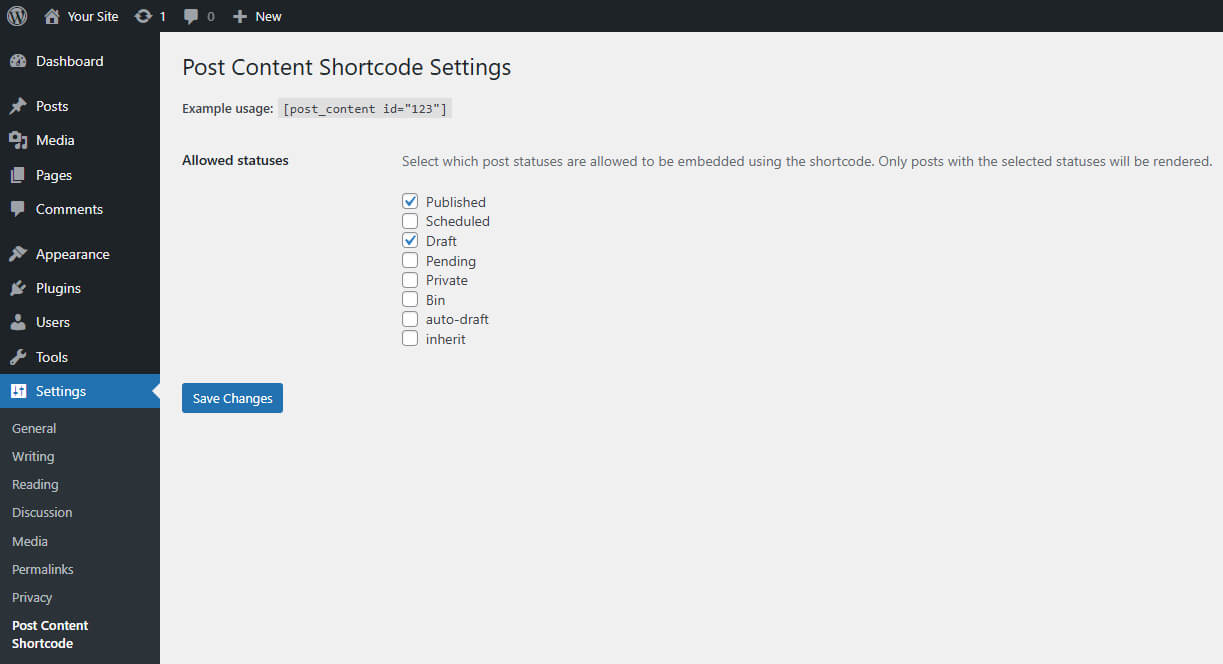
You can configure which post statuses are allowed to be embedded from the plugin’s settings page under Settings Post Content Shortcode.
Usage
Use the shortcode like this:
[post_content id=”123″]
Where 123 is the ID of the post you want to embed.
To avoid infinite loops, the plugin prevents a post from including itself.
Only posts with selected statuses (e.g. Published, Draft) will be rendered. You can control this from the plugin settings page.
Customizing the Shortcode Tag
By default, the shortcode tag is post_content. You can change it by adding this to your theme’s functions.php file:
add_filter( ‘herron_pcs_shortcode_tag’, function( $tag ) {
return ‘my_custom_shortcode’;
});
After doing so, use the new tag:
[my_custom_shortcode id=”123″]
The settings page and all logic will automatically respect this change.
Learn More About Herron
This plugin is part of Herron’s ongoing effort to give back to the WordPress community. If you’re interested in how we build custom WordPress solutions for clients or want to collaborate, please visit https://herron.agency/.
スクリーンショット
インストール
- Upload the plugin folder to the
/wp-content/plugins/directory. - Activate the plugin through the ‘Plugins’ menu in WordPress.
- Visit Settings Post Content Shortcode to configure allowed post statuses.
FAQ
-
Why doesn’t the shortcode render anything?
-
Make sure the post you’re referencing exists and has an allowed post status (e.g. Published). Check the plugin’s Settings page for configuration.
-
How do I change the shortcode tag name?
-
Use the
herron_pcs_shortcode_tagfilter in your theme’sfunctions.php. See the “Usage” section for an example. -
Does the plugin log errors?
-
Yes, but only when
WP_DEBUG_LOGis enabled in yourwp-config.phpfile. This ensures no logs are written unless your site is in debugging mode.To enable logging, add the following lines to
wp-config.php:define( ‘WP_DEBUG’, true );
define( ‘WP_DEBUG_LOG’, true );Logs will be written to
wp-content/debug.log.
評価
このプラグインにはレビューがありません。
貢献者と開発者

“Post Content Shortcode” をあなたの言語に翻訳しましょう。
開発に興味がありますか ?
変更履歴
1.0.1
- Updated plugin metadata to include plugin and author URIs. No functionality has changed.
1.0.0
- Initial release.